
Auto-replies help you stay responsive to your customers even when you're not immediately available. You can configure them in Automations > Auto Replies.
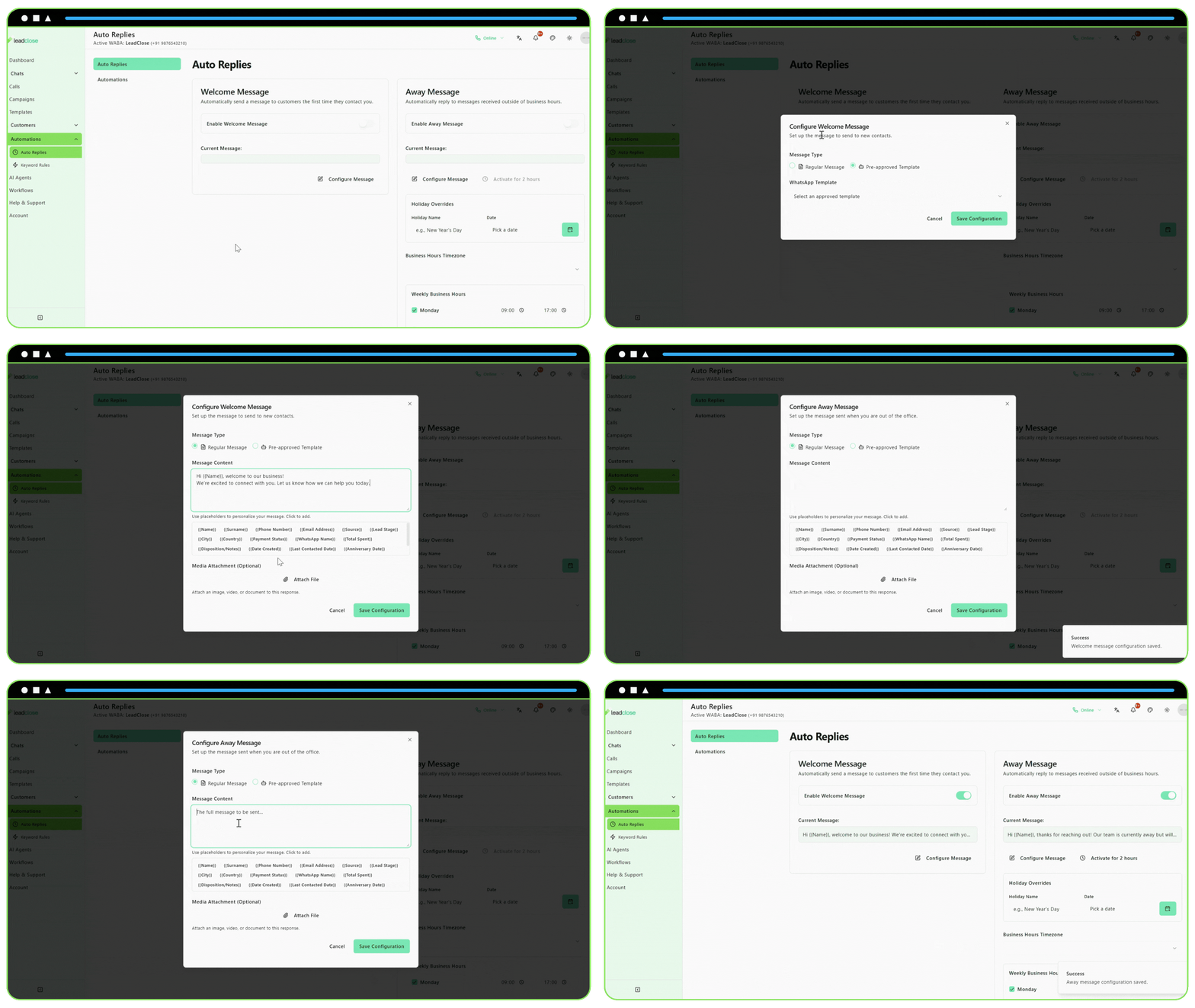
Welcome Message
The Welcome Message is sent only the first time a new customer messages you. It's a great way to make a good first impression and set expectations.
To set up a Welcome Message:
- Go to the "Welcome Message" card and click "Configure Message".
- Choose your message type:
- Regular Message: A simple text message. You can use placeholders like
{{name}}to personalize it. - Template Message: Use a pre-approved message template.
- Regular Message: A simple text message. You can use placeholders like
- Save your configuration.
- Click the "Enable Welcome Message" switch to turn it on.
Away Message
The Away Message is sent automatically when a customer messages you outside of your set business hours.
To set up an Away Message:
- Configure the message content just like you did for the welcome message.
- Set Your Business Hours:
- Choose your team's timezone.
- For each day of the week, check the "enabled" box and set the start and end times when your team is available. Uncheck the box for days you are closed.
- Add Holiday Overrides (Optional): Add specific dates when your office will be closed (e.g., public holidays). The away message will be active for the entire day.
- Save your schedule.
- Click the "Enable Away Message" switch to turn it on.
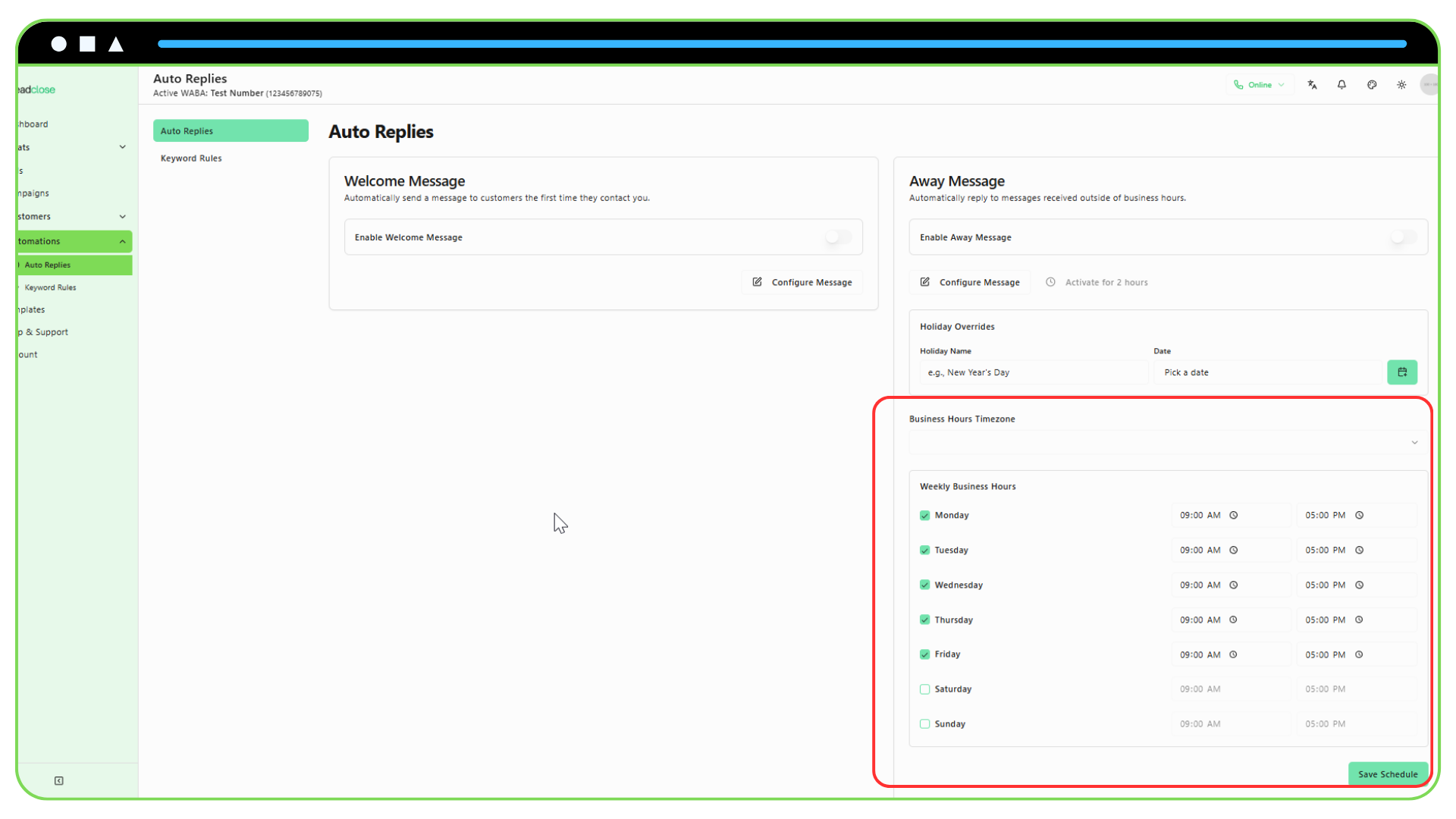
Temporary Override: Need to step away for a short period during business hours? Click the "Activate for 2 hours" button to temporarily enable your away message without changing your regular schedule.