
Keyword Automation Rules allow you to trigger specific actions, like sending an automatic reply, when a customer's message contains certain words or phrases. This is perfect for answering frequently asked questions.
Creating a New Keyword Rule
- Navigate to Keyword Rules: Go to
Automations > Keyword Rules. - Click "Add New Rule".
- Name and Enable: Give your rule a descriptive name (e.g., "Pricing Inquiry") and ensure the "Enable Rule" switch is on.
Step 1: Configure the Trigger
The trigger defines what causes the rule to run.
- Description: "When an incoming message contains any of these keywords..."
- Keywords: Enter the words or phrases that should trigger this automation. Press Enter or click "Add" after each one. The keywords are not case-sensitive.
Example: For a pricing inquiry, you could add keywords like
price,cost,how much,pricing.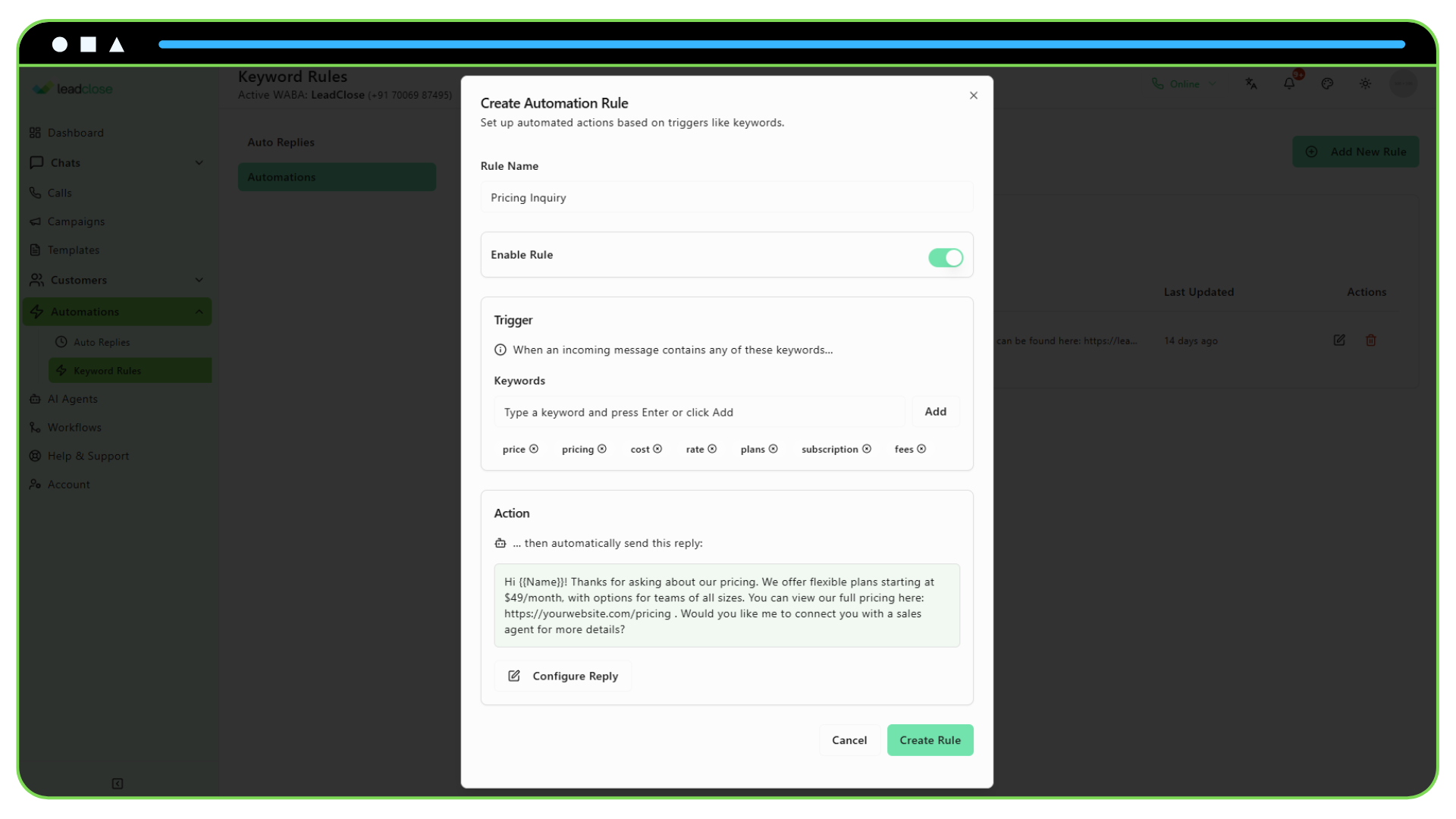
Step 2: Configure the Action
The action defines what happens when the rule is triggered.
Description: "... then automatically send this reply:"
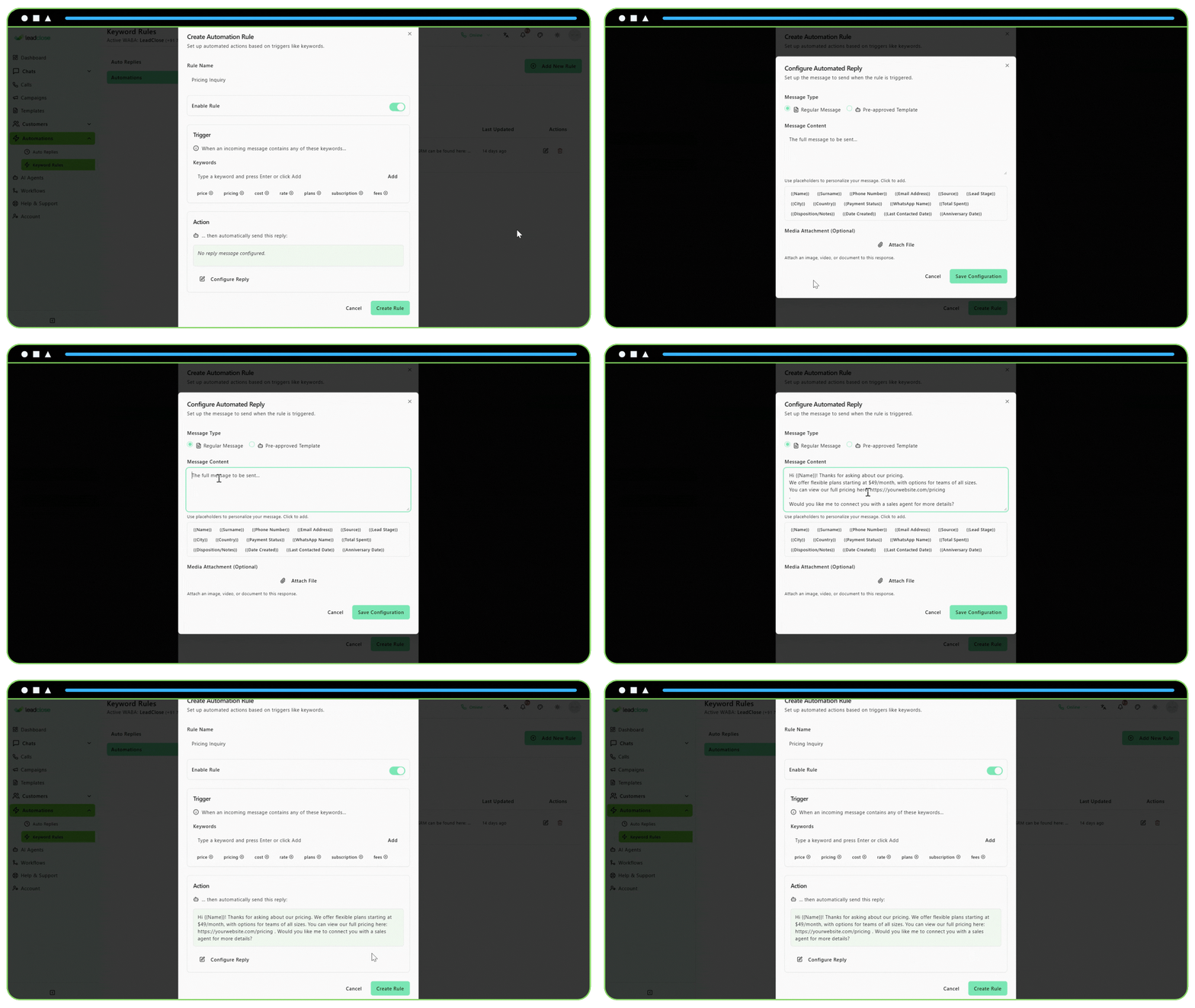
Click "Configure Reply": This opens a dialog where you can set up the automatic message.
- Regular Message: A simple text response.
- Template Message: Use a pre-approved message template. This is useful for sending complex information or messages with buttons.
Save the reply configuration.
Step 3: Save the Rule
Once you've set up your trigger and action, click "Create Rule" or "Save Changes".
Your new rule is now active. If a customer sends a message containing one of your specified keywords, the action you configured will be executed automatically. The system will only trigger the first rule that matches.