
The LeadClose Help & Support center is your go-to resource for learning how to use the platform effectively, finding answers to common questions, and getting in touch with our support team.
Navigating the Help Center
You can access the Help Center by clicking Support in the sidebar. The page is organized into categories to help you find information quickly.
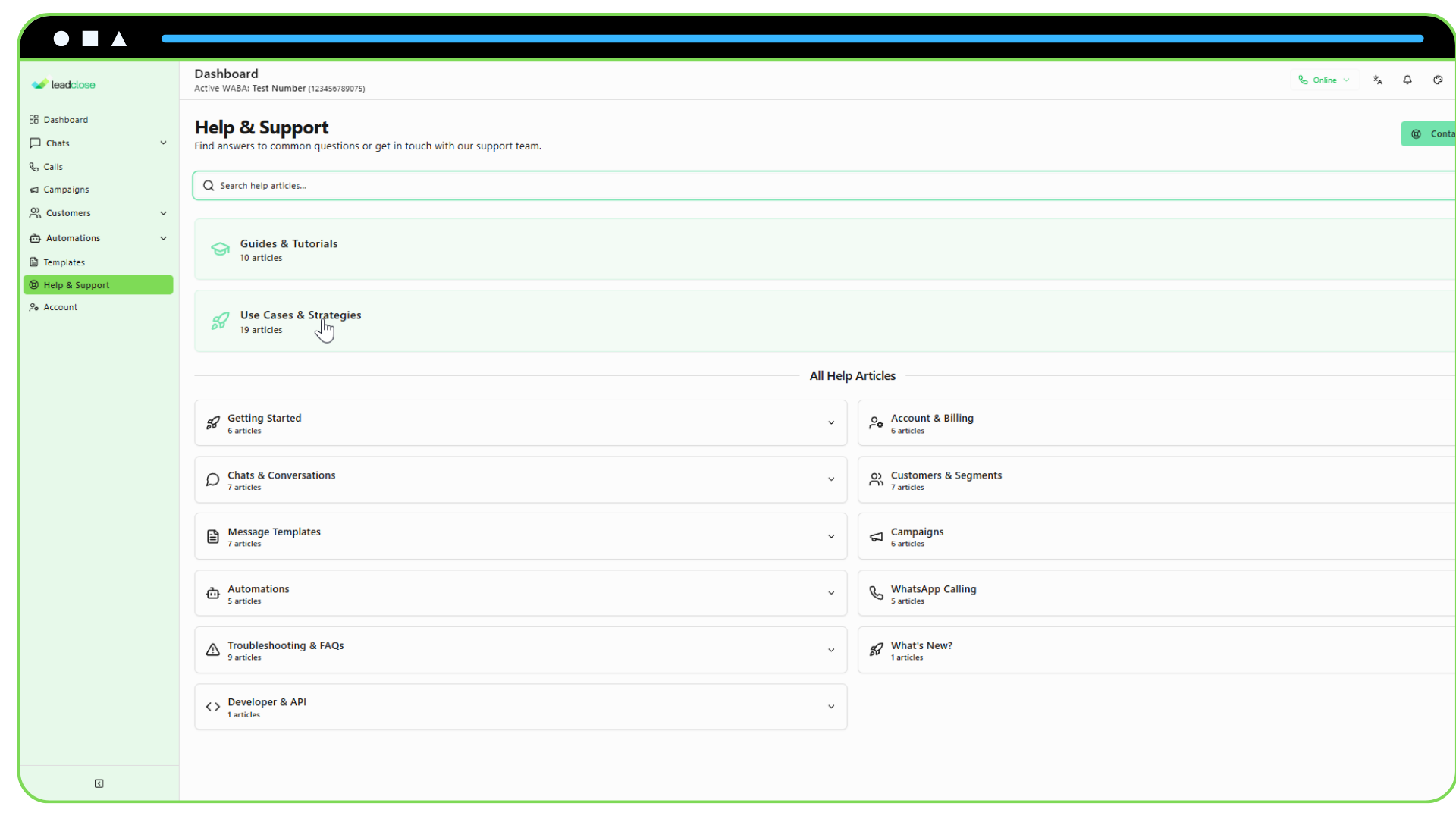
1. Search
- The fastest way to find an answer is to use the search bar at the top of the page.
- Type in keywords related to your question (e.g., "create campaign," "import customers," "green tick").
- The page will instantly filter to show you categories and articles that match your search.
2. Categories
- The articles are grouped into logical categories like "Getting Started," "Campaigns," "Chats & Conversations," etc.
- Highlighted Categories: The most important strategic categories, "Guides & Tutorials" and "Use Cases & Strategies," are featured prominently at the top in large cards. Click on a card to expand it and see the articles in a grid view.
- All Help Articles: The remaining categories are listed in a two-column layout. Click on any category title to expand it and see the list of articles within it.
3. Reading an Article
- Click on an article title to open it.
- Articles often include:
- Step-by-step instructions.
- Screenshots, GIFs, and video tutorials to visually guide you.
- Best practices and strategic tips.
- A Frequently Asked Questions (FAQ) section to answer related questions.
Contacting Support
If you can't find the answer you're looking for in the help articles, you can contact our support team directly.
- Click the "Contact Support" button at the top right of the Help Center page.
- A dialog box will open.
- Fill in the subject and a detailed message describing your issue or question. The more detail you provide, the faster we can help you.
- Click "Send Message".
Your ticket will be sent to our support team, and we will get back to you via email as soon as possible.