
Managing your WhatsApp Business Account (WABA) connection is done from the "Business Details & Integrations" card on the Account page.
Who can manage the WABA connection? Only users with the Owner or Admin role can perform these actions.
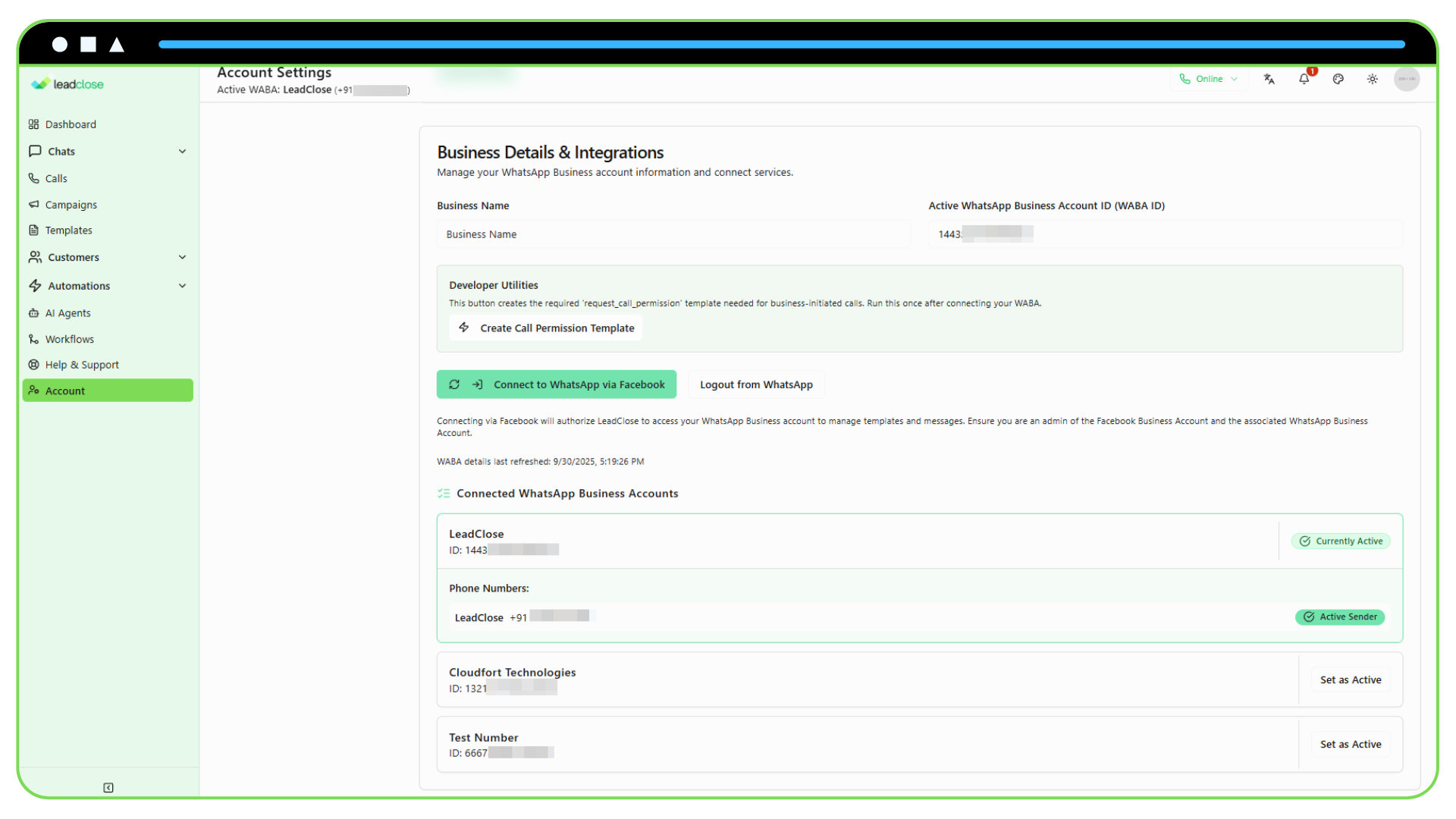
Refreshing WABA Details
If you have made changes to your WABA in the Meta Business Manager (e.g., added a new phone number, changed a display name), you may need to refresh the connection in LeadClose to see those changes.
- Click the "Refresh WABA Details" button.
- LeadClose will re-connect to the Meta API and pull in the latest information about your connected accounts and phone numbers.
Setting the Active Phone Number
If your WABA has multiple phone numbers, you must choose one to be the active number for sending messages.
- After connecting, a list of your WABAs and their phone numbers will appear.
- Find the phone number you wish to use for sending campaigns and individual messages.
- Click the "Set as Sender" button next to it.
- The phone number will be marked as "Active Sender". All outgoing communications will now originate from this number.
Disconnecting Your Account
If you want to remove the integration between LeadClose and your WhatsApp account, you can disconnect it.
- Click the "Logout from WhatsApp" button.
- This will delete the stored access tokens and remove the connection details from your LeadClose account.
- Note: This action does not delete your WhatsApp Business Account itself, it only removes the link to LeadClose. You can reconnect at any time.