
LeadClose is built for collaboration. You can invite your team members and assign them specific roles to manage different aspects of your WhatsApp communications.
Who can invite new members? Only users with the Owner or Admin role can invite new people to the team.
How to Send an Invitation
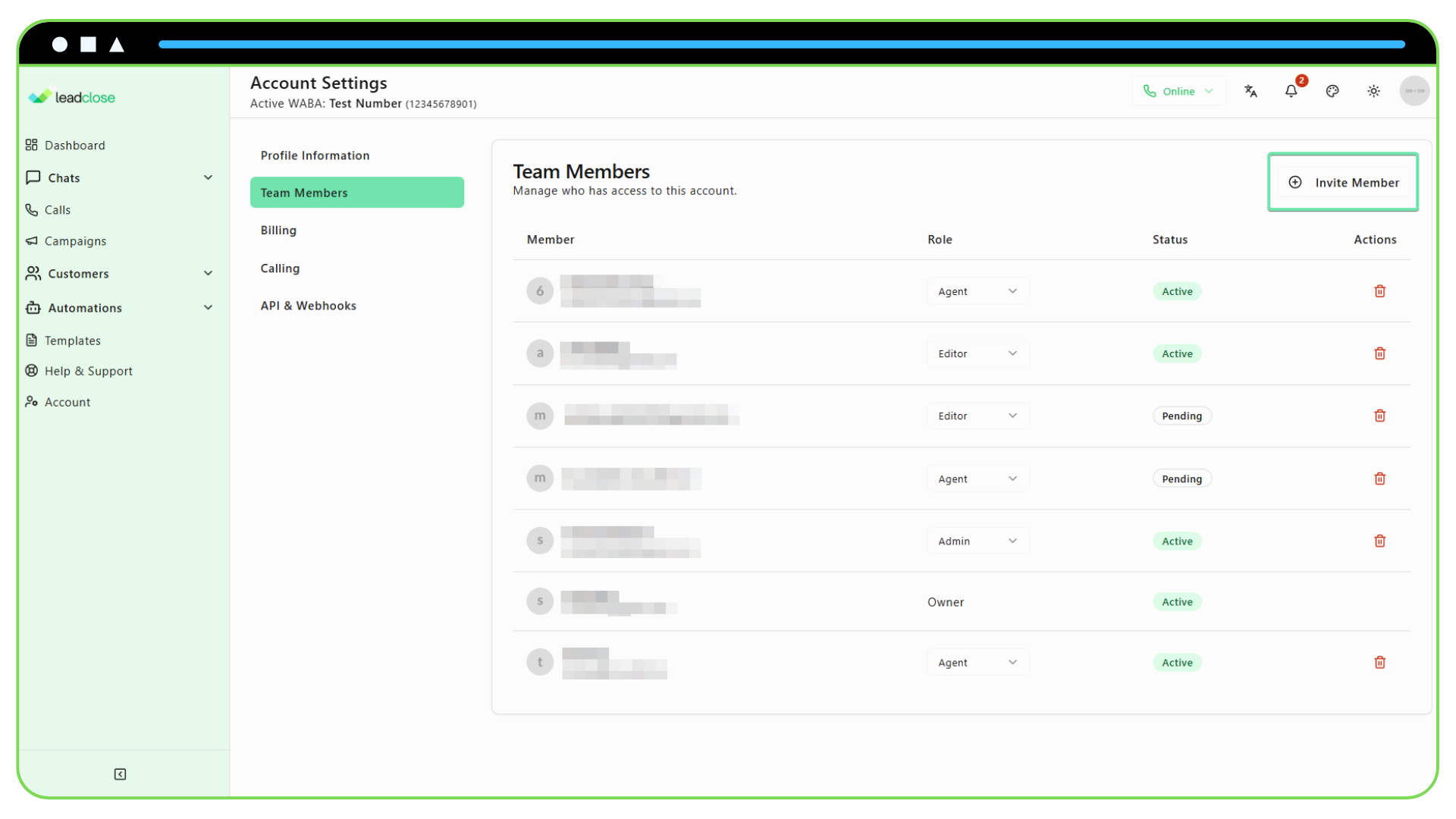
- Navigate to Account Settings: Click on
Accountin the sidebar. - Go to the Team Section: On the account page, you will find the "Team Members" card.
- Click "Invite Member": Press the "Invite Member" button to open the invitation dialog.
Fill in the Details:
- Email Address: Enter the email address of the person you want to invite.
- Role: Select the role you want to assign to them from the dropdown menu. (See "Understanding User Roles" for more information).
Send the Invitation: Click "Send Invitation".
What Happens Next?
- If the person already has a LeadClose account: They will receive an email notifying them that they've been added to your team. They can log in with their existing credentials to access your team's workspace.
- If the person is new to LeadClose: They will receive an email with a unique link to sign up. When they click the link, they will be guided through creating their account, and they will automatically be added to your team upon completion.
The invited user will appear in your "Team Members" list with a "Pending" status until they accept the invitation and log in.