
You can manage your team members, their roles, and pending invitations from the Account > Team page.
Who can manage the team?
- Owners can invite, remove, and change the role of any other member.
- Admins can invite, remove, and change the role of Editors and Agents.
Viewing Team Members
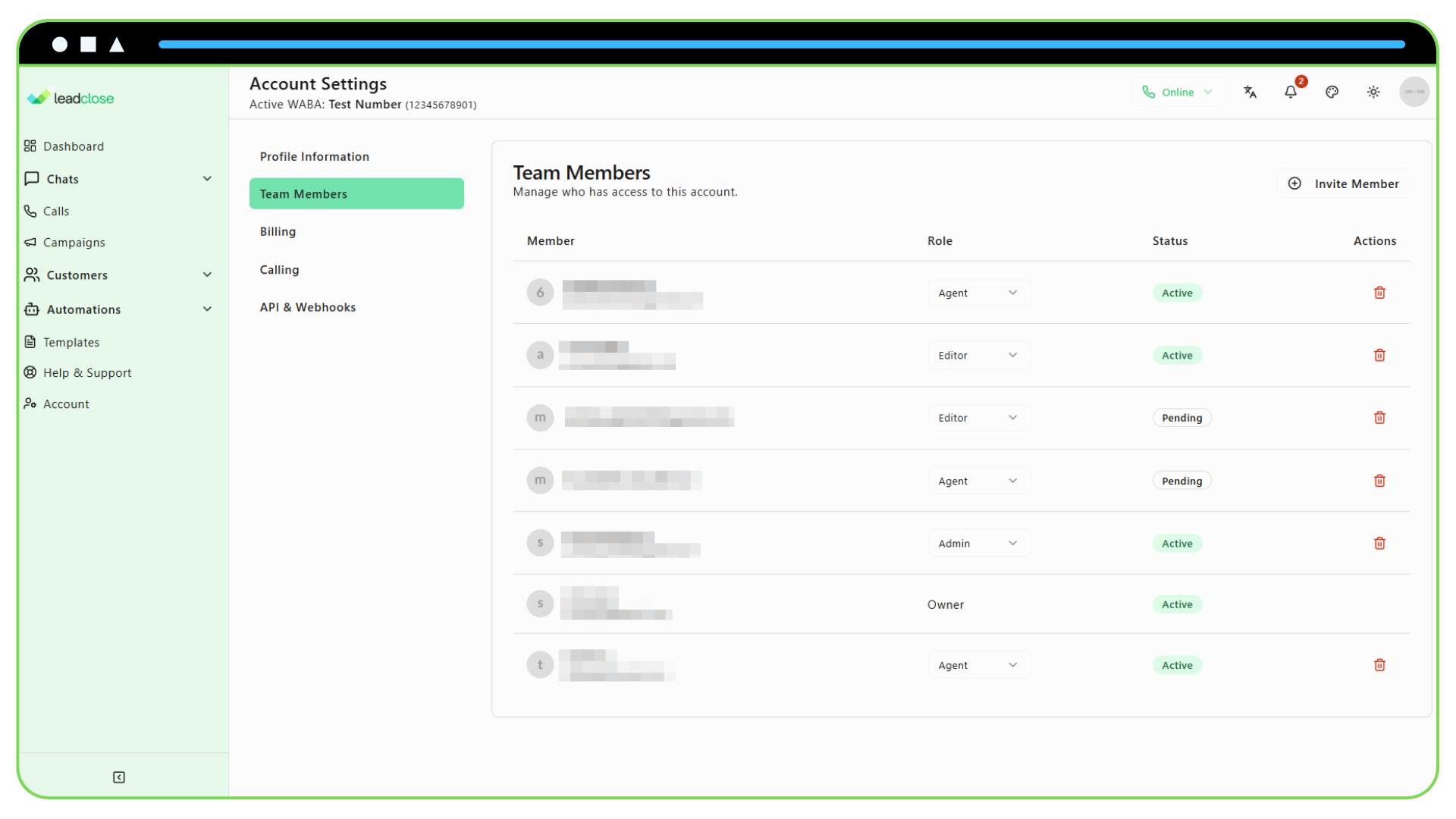
The table on this page shows a list of everyone who has access to your team's workspace.
- Member: Shows the user's name, email, and profile picture.
- Role: Shows their current role (Owner, Admin, Editor, or Agent).
- Status:
Active: The user has accepted the invitation and can access the account.
Pending: An invitation has been sent, but the user has not yet created their account or logged in to accept.
Changing a Member's Role
- Find the member in the list.
- Click the dropdown menu in the Role column.
- Select the new role you want to assign them. The change is saved automatically.
Note: Only the Owner can promote a user to the Admin role.
Removing a Team Member
- Find the member you want to remove.
- Click the trash can icon in the Actions column.
- Confirm the removal in the dialog box that appears.
When you remove a team member, they will immediately lose all access to your team's workspace, including chats, customers, and campaigns. If the user was pending, their invitation will be invalidated.