
LeadClose integrates with WhatsApp Calling, allowing your agents to handle voice calls directly within the application through a dedicated call widget.
Setting Your Status
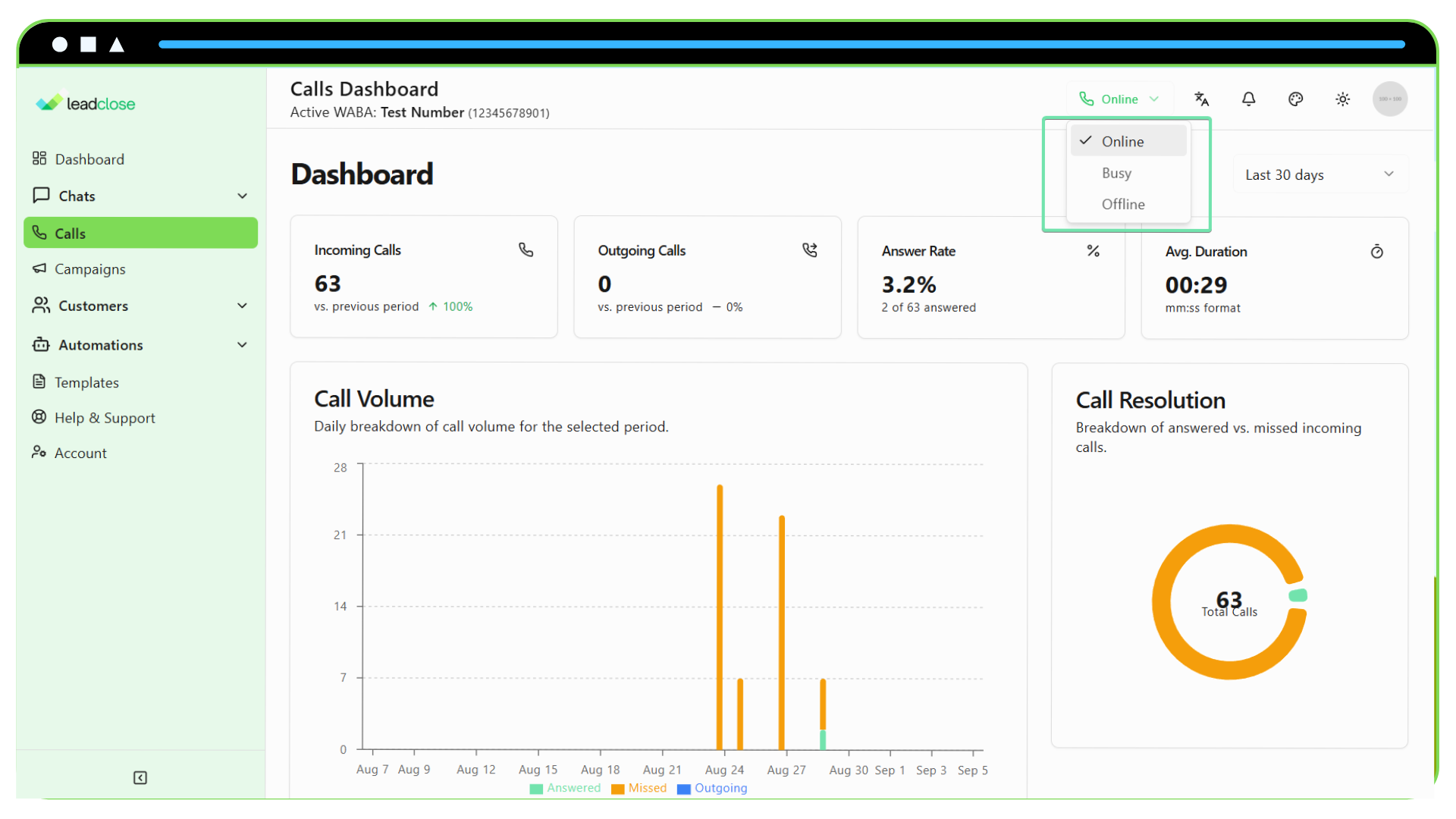
Before you can receive calls, you must set your status to "Online". You can find the status switcher in the main app header.
Online: You are available to receive call notifications.
Busy: You will not receive call notifications.
Offline: You are logged out or unavailable.
Receiving an Incoming Call
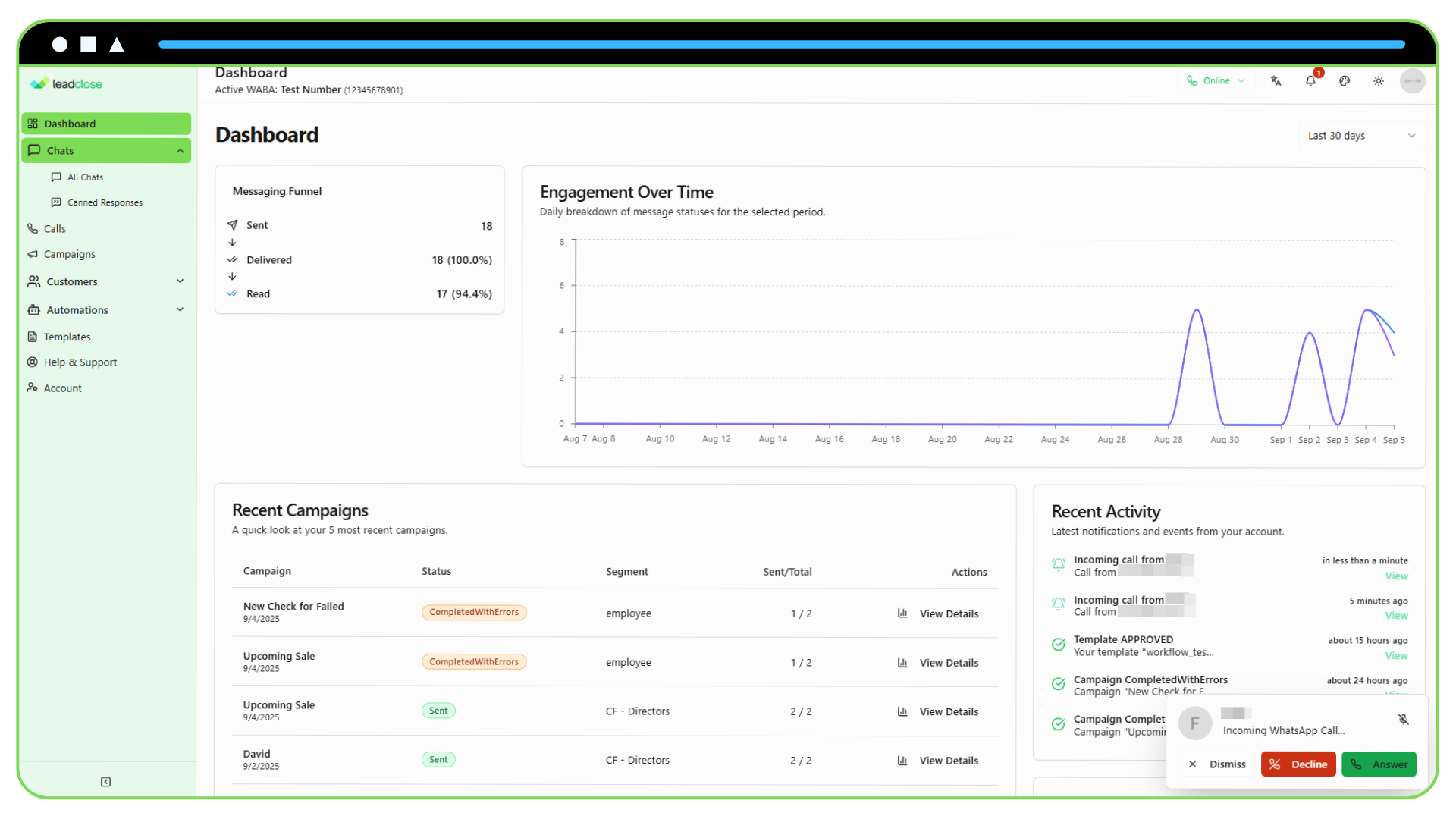
When a customer calls you, an Incoming Call Toast will appear at the bottom-right of your screen, and a ringing sound will play.
Answer: Click the green "Answer" button to accept the call.
Decline: Click the red "Decline" button to reject the call. The customer will hear a busy signal.
Silence: Click the microphone icon to silence the ringing sound without declining the call.
Dismiss: Click "Dismiss" to hide the toast. The call will continue to ring for other available agents.
The Active Call Widget
Once a call is connected (either incoming or outgoing), the Call Widget will appear.
- Customer Info: Shows the name and a timer for the call duration.
- Mute/Unmute: Toggle your microphone on or off.
- Hang Up: Click the red phone button to end the call.
- Minimize: Click the minimize icon to shrink the widget to a compact bar at the bottom of the screen, allowing you to navigate the app while on a call.
Making an Outgoing Call
You can only call a customer if they have granted you permission within the last 24 hours.
- Open a Chat: Go to the conversation with the customer you want to call.
- Request Permission (if needed): If the "Call" button is disabled, you must first send a Call Permission Request. You can do this from the call popover. You can send a pre-approved template or, if you've messaged in the last 24 hours, a custom message.
- Initiate Call: Once permission is granted (the customer taps "Call" on your request), the "Call Now" button in the chat header will become active. Click it to start the call.
Post-Call Wrap-Up
After a call ends, a Wrap-Up panel will appear for 30 seconds. This gives you a moment to add any relevant notes to the customer's timeline or update their disposition before moving on to the next task.