
To comply with Meta's policies and ensure a positive user experience, you cannot initiate a call to a customer out of the blue. You must first get their permission. This is done by sending a specific type of message that prompts them to start the call.
When is Permission Required?
- You need permission to initiate any business-initiated call.
- The permission, once granted by the user, is valid for 24 hours.
How to Request Permission
There are two primary ways to ask a customer for permission to call them.
1. Free-form Message (Within 24-Hour Window) If you are within the 24-hour customer service window (meaning the customer has messaged you in the last 24 hours), you can send a free-form message to ask for permission.
- From the chat view, click the Phone icon in the header.
- A popover will appear. Click the "Request Permission to Call" button.
- In the dialog, you can write a custom message (e.g., "Is now a good time for a quick call to discuss your question?").
- When you send this message, WhatsApp automatically appends a "Call Us" button to it.
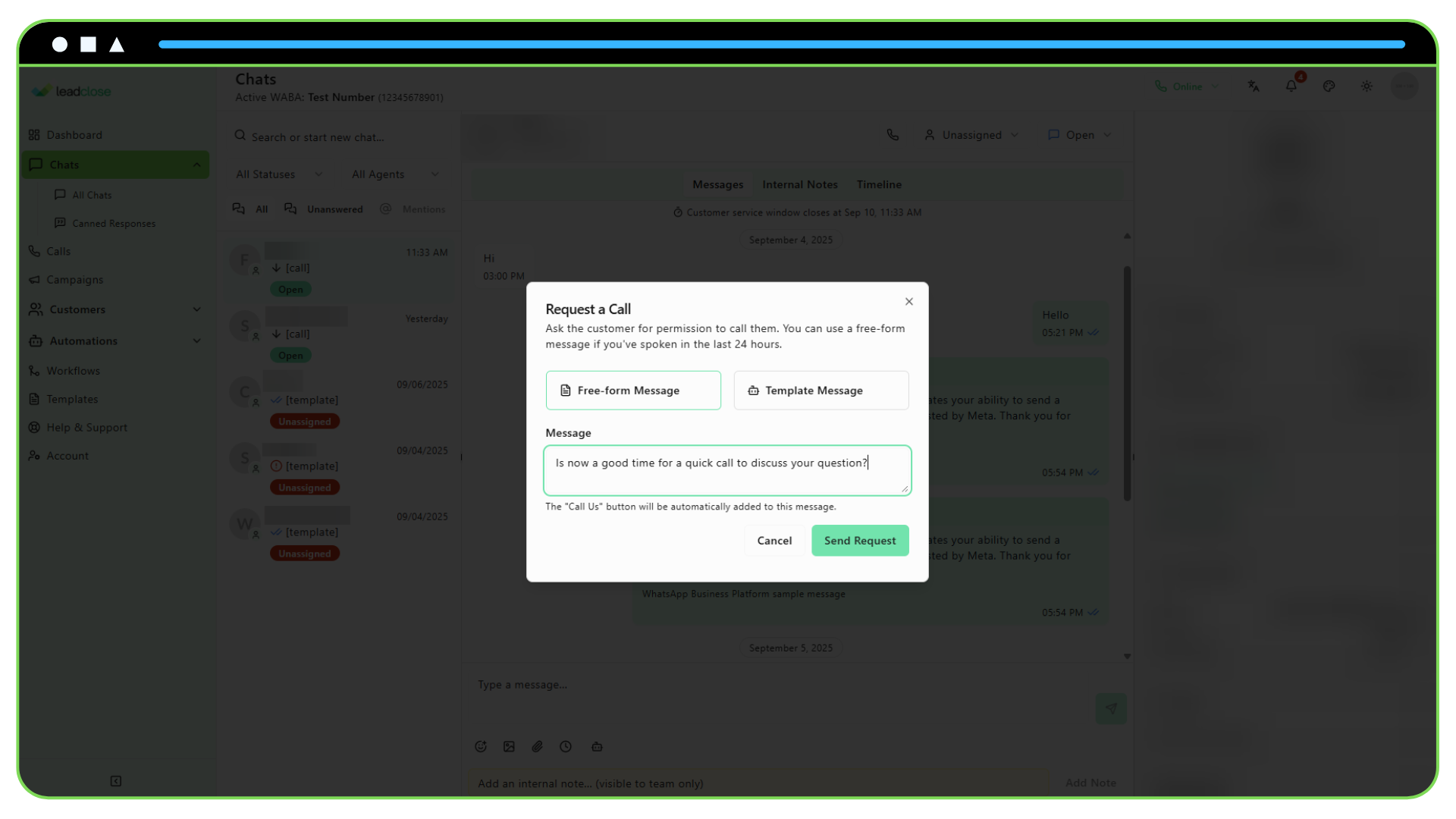
2. Template Message (Outside 24-Hour Window) If the 24-hour window is closed, you must use a pre-approved message template that includes a "Call" button.
- Create a Template: Go to
Templatesand create a new Utility template.- Name:
request_call_permission(or similar) - Body: "Hi {{1}}, regarding your recent inquiry, would you be available for a quick call? Please tap the button below when you are ready."
- Button: Add a Call-to-Action button of the type "Call Phone Number". The button text could be "Call Us Now".
- Name:
- Send the Template: From the chat view, use the Template Sender to send this approved template to the customer.
What the Customer Sees
When the customer receives your request, they will see your message along with a prominent "Call" button. When they tap this button, it initiates an inbound call from them to you and grants you permission to call them back for the next 24 hours.
[SCREENSHOT: A WhatsApp chat on a phone, showing the business's request message and the green "Call" button.]
Once permission is granted, the "Call Now" button in the chat header within LeadClose will become active, and your agents can initiate an outbound call.