
You can configure both native WhatsApp call settings and app-specific call features from the Account Settings page.
Who can manage call settings? Only users with the Owner or Admin role can access and modify these settings.
Navigating to Call Settings
- Go to
Accountin the sidebar. - Select the
Callingtab from the account navigation.
Native WhatsApp Call Settings
This section controls how the calling feature behaves directly on the WhatsApp platform for your active phone number. These settings are managed via the Meta API.
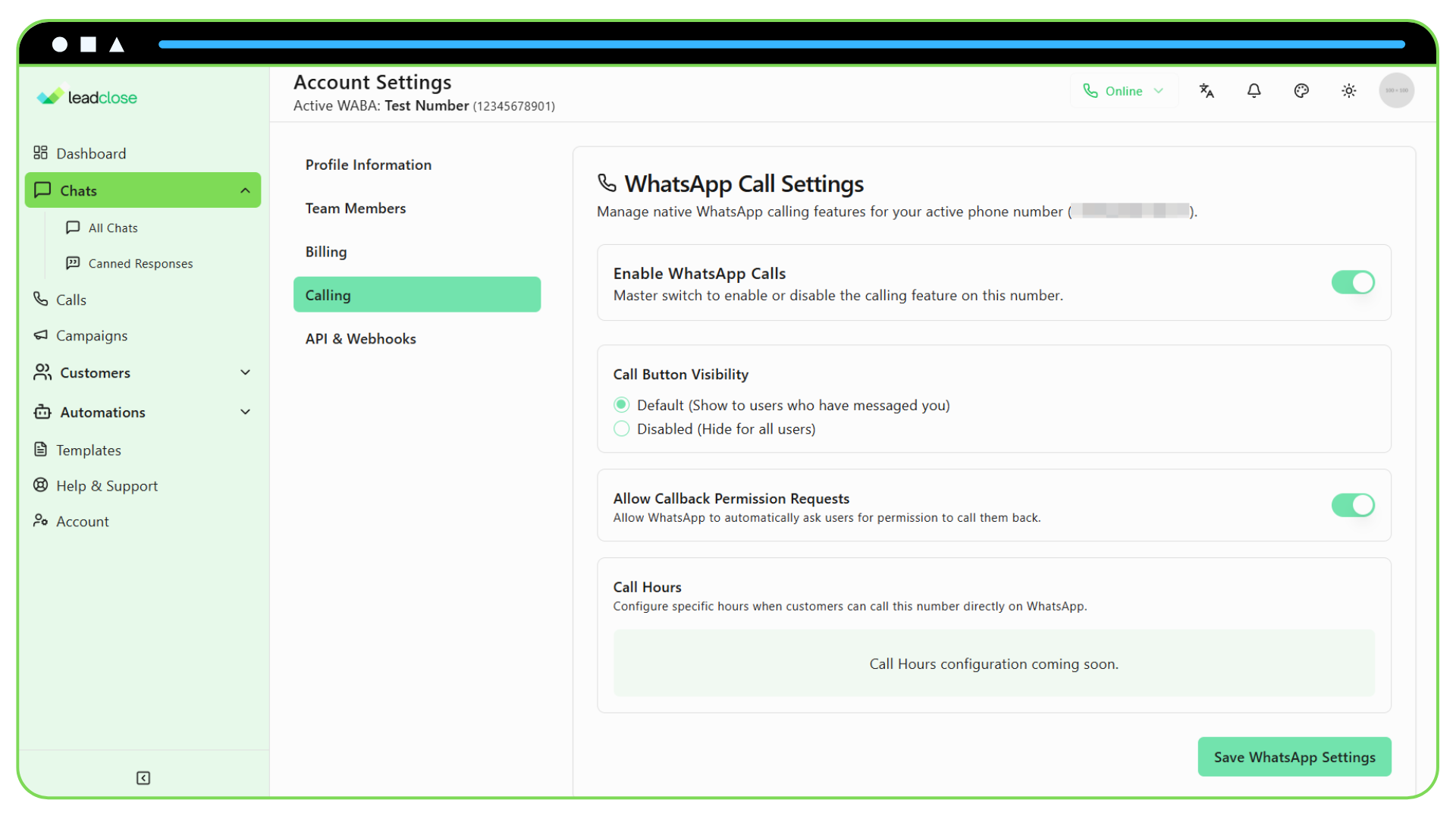
- Enable WhatsApp Calls: This is the master switch. If this is turned off, customers will not be able to call your number via WhatsApp at all.
- Call Button Visibility:
- Default: The call icon will only be visible in the WhatsApp chat header for customers who have an existing conversation with you.
- Disabled: The call icon will be hidden for all users, but they can still call if they have your number saved.
- Allow Callback Permission Requests: When enabled, WhatsApp may automatically prompt users for permission to be called back if they message you. This is useful for re-engaging customers.
Application-Level Settings (Voicemail & Routing)
This section controls features handled within the LeadClose application.
- Enable Voicemail: If enabled, calls that are received outside of your set business hours will be directed to a voicemail system instead of ringing your agents.
- Business Hours for Agent Routing: Define the specific days and times when your agents are considered "available". Incoming calls outside of this schedule will be considered "after hours" and will trigger the voicemail if it's enabled.
- Voicemail Greeting: [Coming Soon] You will be able to upload a custom audio file to be played as your voicemail greeting.