
The customer import tool allows you to add or update many customers at once using a CSV file.
Step 1: Prepare Your CSV File
- Download the Template: On the
Customerspage, click the Import button, then click "Download CSV Template". This gives you a file with the correct headers. - Fill in Your Data: Open the template in a spreadsheet program (like Excel, Google Sheets, or Numbers) and add your customer data.
- Required Columns:
nameandphone. - Phone Number Format: Must be in international format with the country code (e.g.,
+14155552671). Do not use spaces, dashes, or parentheses. - Tags Column: To add multiple tags to one customer, separate them with a pipe character (
|). For example:VIP|Follow Up|New Lead.
- Required Columns:
- Save as CSV: Export your completed spreadsheet as a CSV file.
Step 2: Upload and Map Columns
Upload the File: On the Import modal, drag and drop your CSV file or click to select it.
Map Your Columns: The app will try to automatically match the columns in your file to the fields in LeadClose. Review these mappings. If a column from your CSV wasn't matched correctly, use the dropdown menu to select the correct LeadClose field. You can also choose to "Ignore this column".
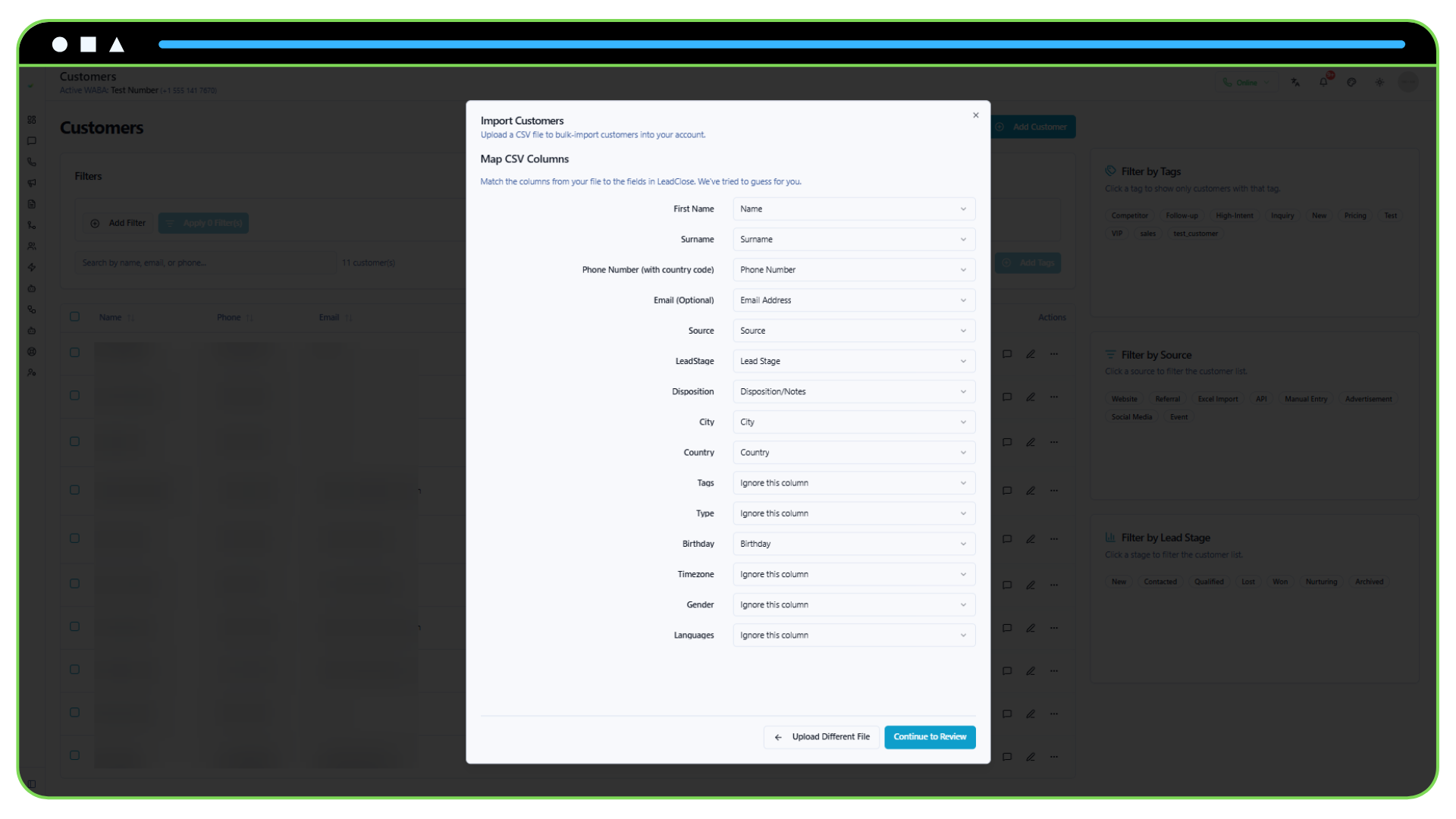
Click "Continue to Review".
Step 3: Review and Confirm
- Handle Duplicates: Choose what to do if a customer in your file (matched by phone or email) already exists in LeadClose.
- Skip: Do not import that row and keep the existing customer data as is.
- Update: Overwrite the existing customer's data with the information from your CSV file.
- Add Global Tags: You can add one or more tags to every single customer being imported from this file.
- Review Data: The system will show you a preview of valid rows that are ready for import and a list of any invalid rows that will be skipped. Invalid rows often have issues like missing names/phones or incorrectly formatted data.
- Start the Import: If everything looks correct, click the "Import X Customers" button.
The import will process in the background. You will receive an in-app notification when it's complete.