
You can export your customer list from LeadClose at any time. This is useful for creating backups, performing analysis in an external tool like Excel or Google Sheets, or migrating your data to another CRM.
How to Export Customers
- Navigate to the Customers Page: Click on
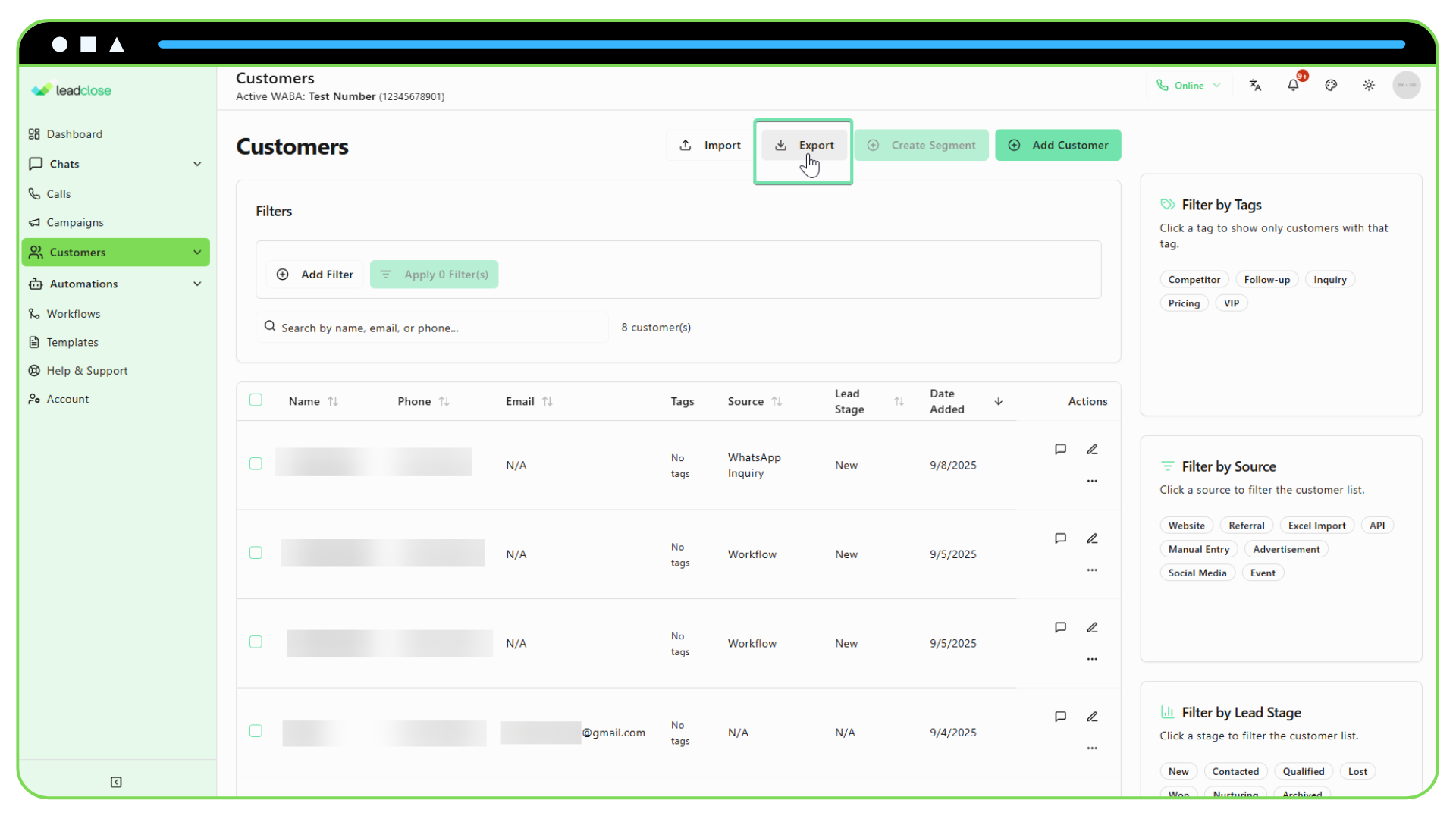
Customersin the sidebar. - (Optional) Apply Filters: The export tool will export the customers currently visible in the table. If you only want to export a specific group of customers, use the search bar and the filter builder first to narrow down your list.
- Click the "Export" Button: This button is located at the top right of the page.
What Happens Next?
- A CSV file will be immediately generated and downloaded by your browser.
- The file will be named
leadclose_customers_[DATE].csv.
What Data is Included in the Export?
The CSV file will contain all the standard and custom fields associated with your customers, including:
- ID
- Name
- Phone
- Source
- Lead Stage
- City & Country
- Tags (separated by a pipe
|character) - All other custom fields you may have.
FAQs
Q: Can I choose which columns to export? A: Currently, the export includes all available customer data fields. The ability to select specific columns may be added in a future update.
Q: Does the export include conversation history? A: No, the customer export only includes the data stored on the customer profiles themselves (their properties and tags). Conversation history is not part of this export.
Q: What is a CSV file? A: CSV stands for "Comma-Separated Values". It's a plain text file format that is compatible with virtually all spreadsheet applications, like Microsoft Excel, Google Sheets, and Apple Numbers.