
The filter builder is a powerful tool that lets you create highly specific views of your customer list. You can combine multiple conditions to find exactly the group of customers you need.
Building a Filter
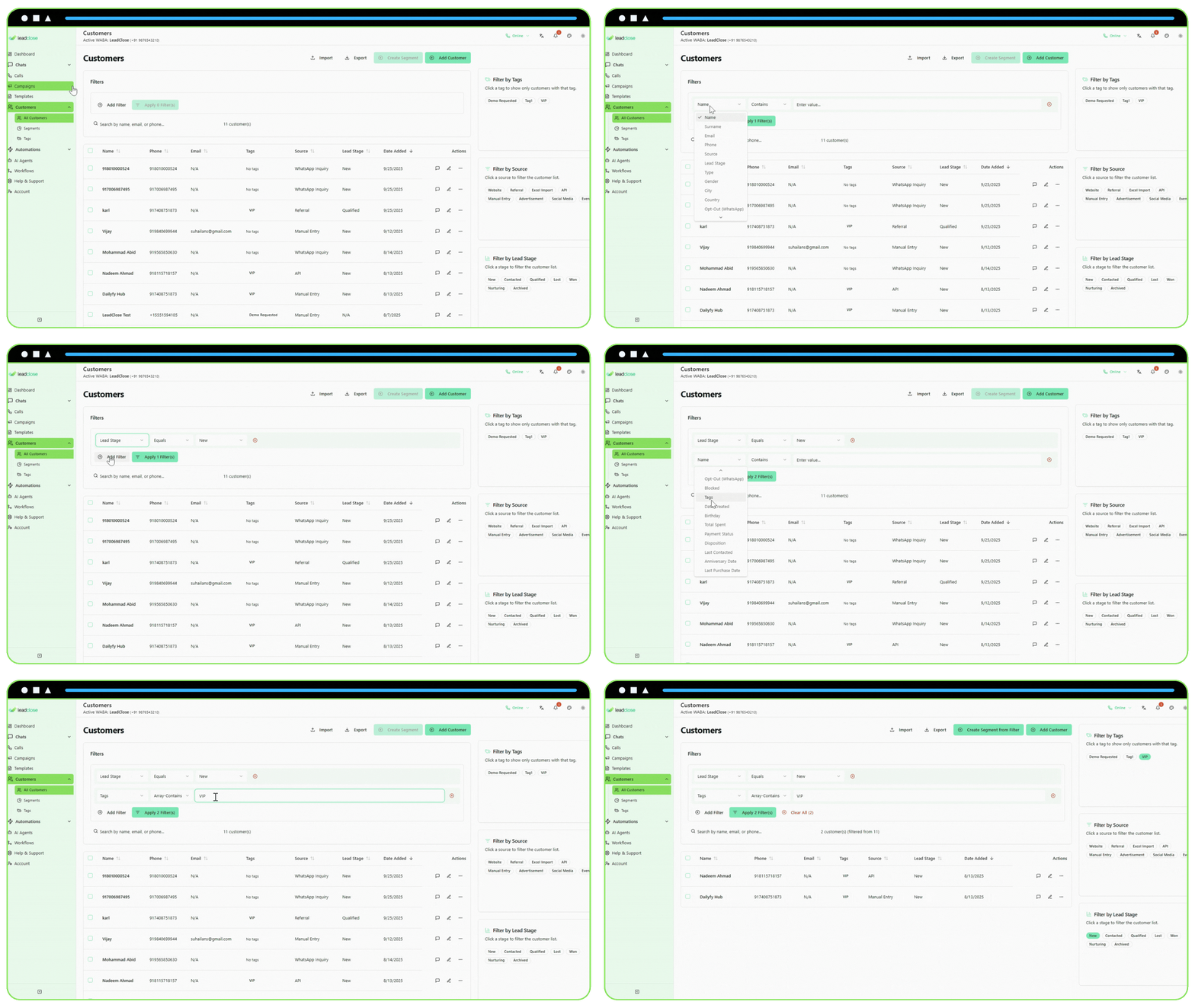
Open the Filter Builder: On the
Customerspage, click the Filters button to expand the builder section.Add Your First Rule: Click "Add Filter". A new rule row will appear.
Define the Rule: Each rule has three parts:
- Field: The customer attribute you want to filter by (e.g.,
Lead Stage,Tags,Date Created). - Operator: How you want to compare the field (e.g.,
equals,contains,is not empty). - Value: The specific value you're looking for (e.g., "New", "VIP", "2024-08-10").
- Field: The customer attribute you want to filter by (e.g.,
Add More Rules (Optional): You can add multiple rules to narrow down your list. All rules are combined with an "AND" condition, meaning a customer must match all the rules to be shown.
Apply Filters: Click the "Apply Filters" button. The customer list will update to show only the matching customers.
Filter Examples
Find all new leads from your website:
Source|equals|Website- AND
Lead Stage|equals|New
Find all customers who have a tag but no email address:
Tags|is not empty| (no value needed)- AND
Email|is empty| (no value needed)
Find customers added in the last month:
Date Created|greater than| (select a date from one month ago)
Once you have a filter applied, you can create a Segment from it to save for later use in campaigns.