
Standard templates are the most common type of WhatsApp message. They consist of a text body and can optionally include a header, footer, and interactive buttons.
Step 1: Basic Information
- Navigate to Templates: Go to
Templatesin the sidebar and click "Create New Template". - Name: Give your template a unique, descriptive name using only lowercase letters, numbers, and underscores (e.g.,
order_confirmation_v2). - Category: Choose the correct category (Marketing, Utility, or Authentication). This is a critical step for approval.
- Language: Select the language of your template.
- Structure: Ensure "Standard" is selected.
Step 2: Content
This is where you build the message itself. Use the phone preview on the right to see how your message will look.
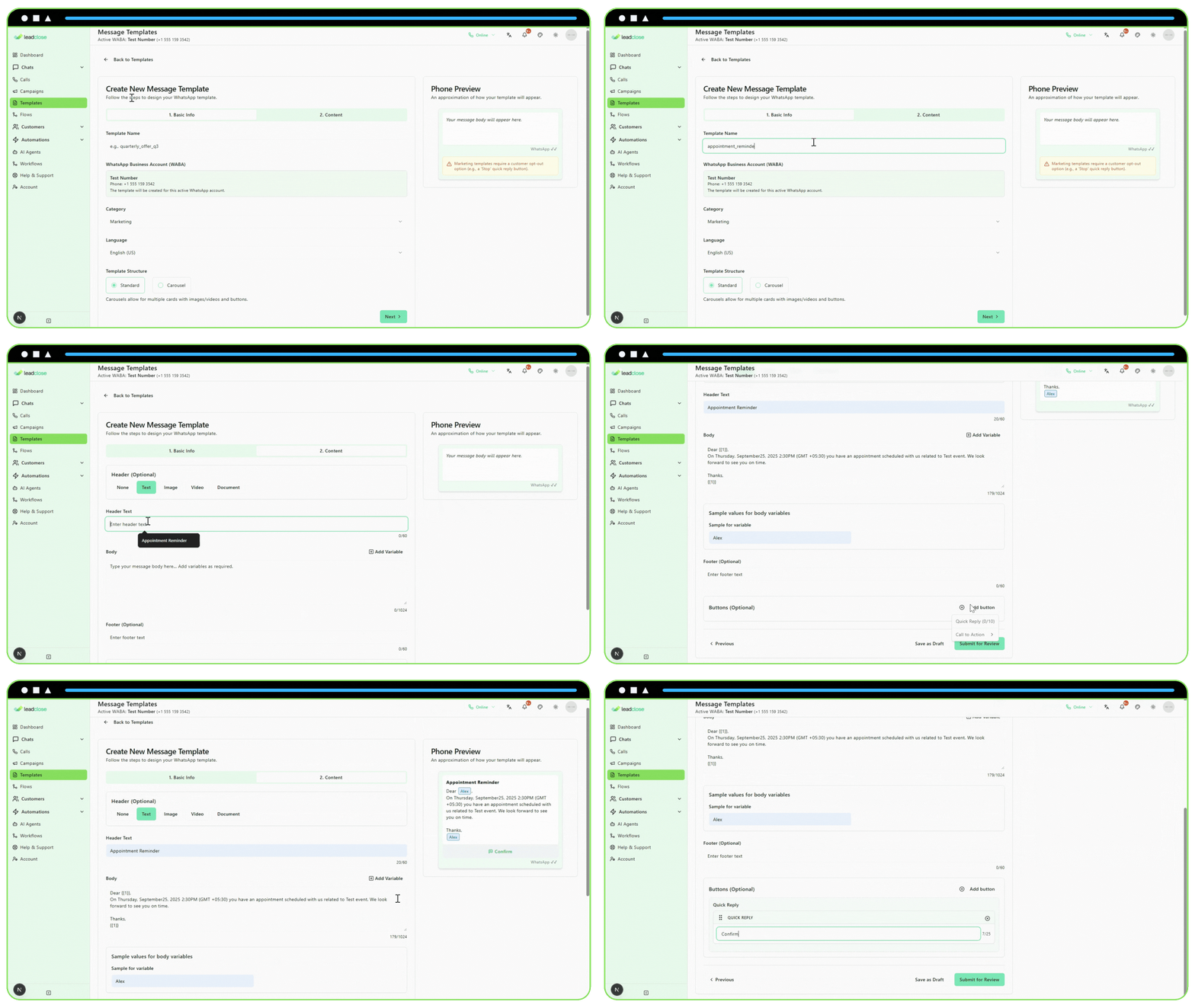
1. Header (Optional) You can add a header to make your message more engaging.
- Text: A short, bolded title. Can include one variable.
- Image, Video, or Document: Select this and then use the Media Picker to choose a file you've already uploaded or upload a new one. This media will be reviewed with your template.
2. Body This is the main text of your message.
- Write your content: Type your message in the text box.
- Add Variables: Click the "Add Variable" button to insert placeholders like
{{1}},{{2}}, etc. These will be replaced with customer data when you send a campaign. - Provide Samples: For each variable you add, a field will appear below where you must provide a realistic example of the content that will go there (e.g., for
{{1}}, a sample could be "John Doe").
3. Footer (Optional) A short line of text that appears at the bottom of your message in a smaller font (e.g., "Your friendly neighborhood store").
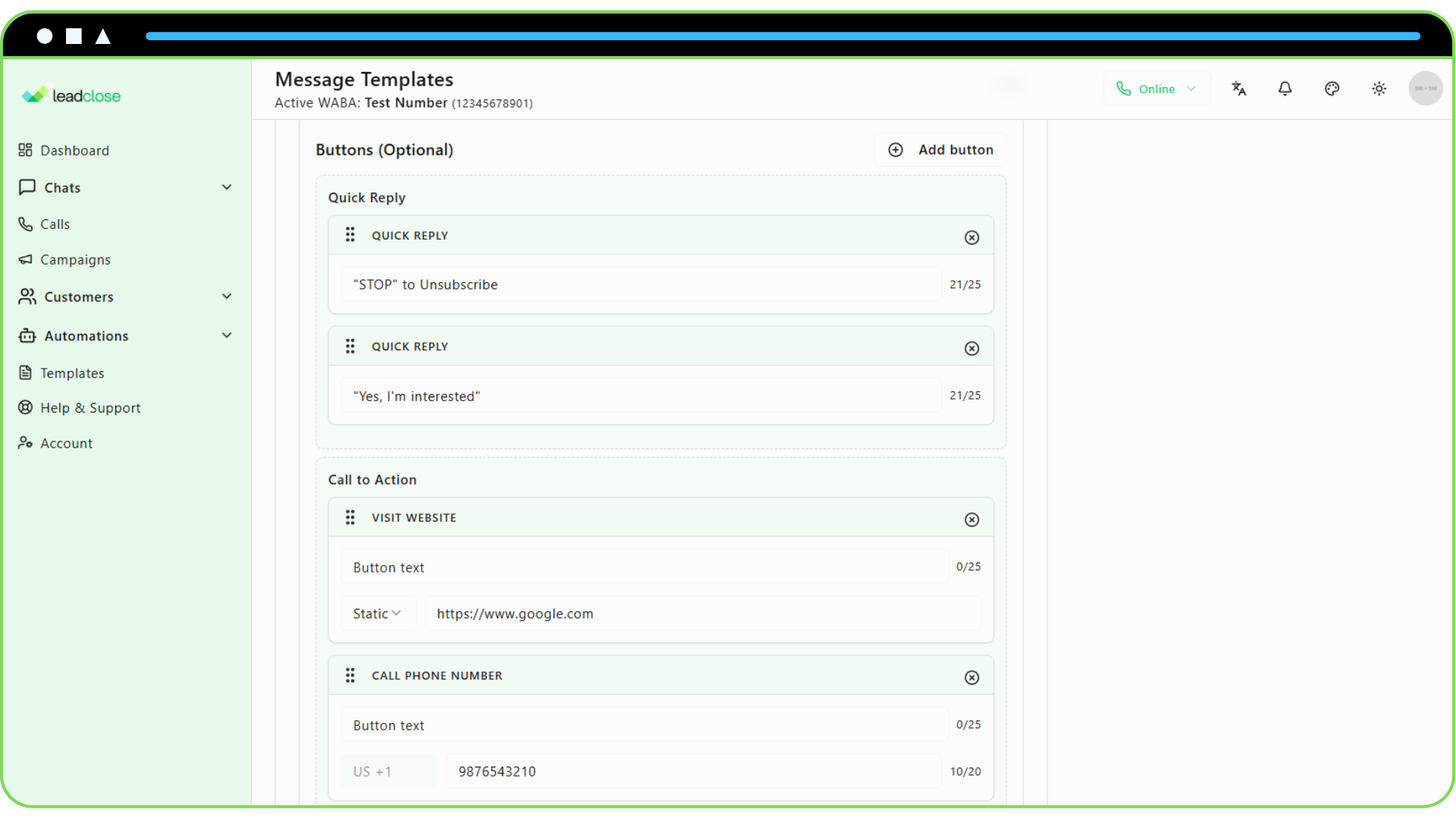
4. Buttons (Optional) Buttons make your messages interactive. You can add up to 10 buttons in total.
- Quick Reply: These buttons allow users to send a quick text response (e.g., "Yes, I'm interested", "Stop"). You can have up to 10 of these.
- Call to Action (CTA): These perform an action when clicked.
Visit Website: Takes the user to a URL. Can be a static link or a dynamic link with one variable.
Call Phone Number: Dials a phone number.
Copy Offer Code: Copies a coupon code to the user's clipboard.
Step 3: Submit for Review
Once you are happy with your template, click "Submit for Review". The template will be sent to Meta for approval, which can take anywhere from a few minutes to 24 hours. You will see the status change to "Pending" in your template list.