
Carousel templates allow you to send a single message containing a scrollable sequence of up to 10 "cards". Each card can have its own image or video, body text, and website buttons.
Important Rules for Carousels:
- Carousels must be in the Marketing category.
- The message body (text above the cards) is required.
- Each card must have a body.
- All cards after the first one must have the same number of buttons as the first card.
Step 1: Basic Information
- Navigate to Templates and click "Create New Template".
- Name, Language: Fill these out as you would for a standard template.
- Category: You must select Marketing.
- Structure: Select Carousel.
Step 2: Content
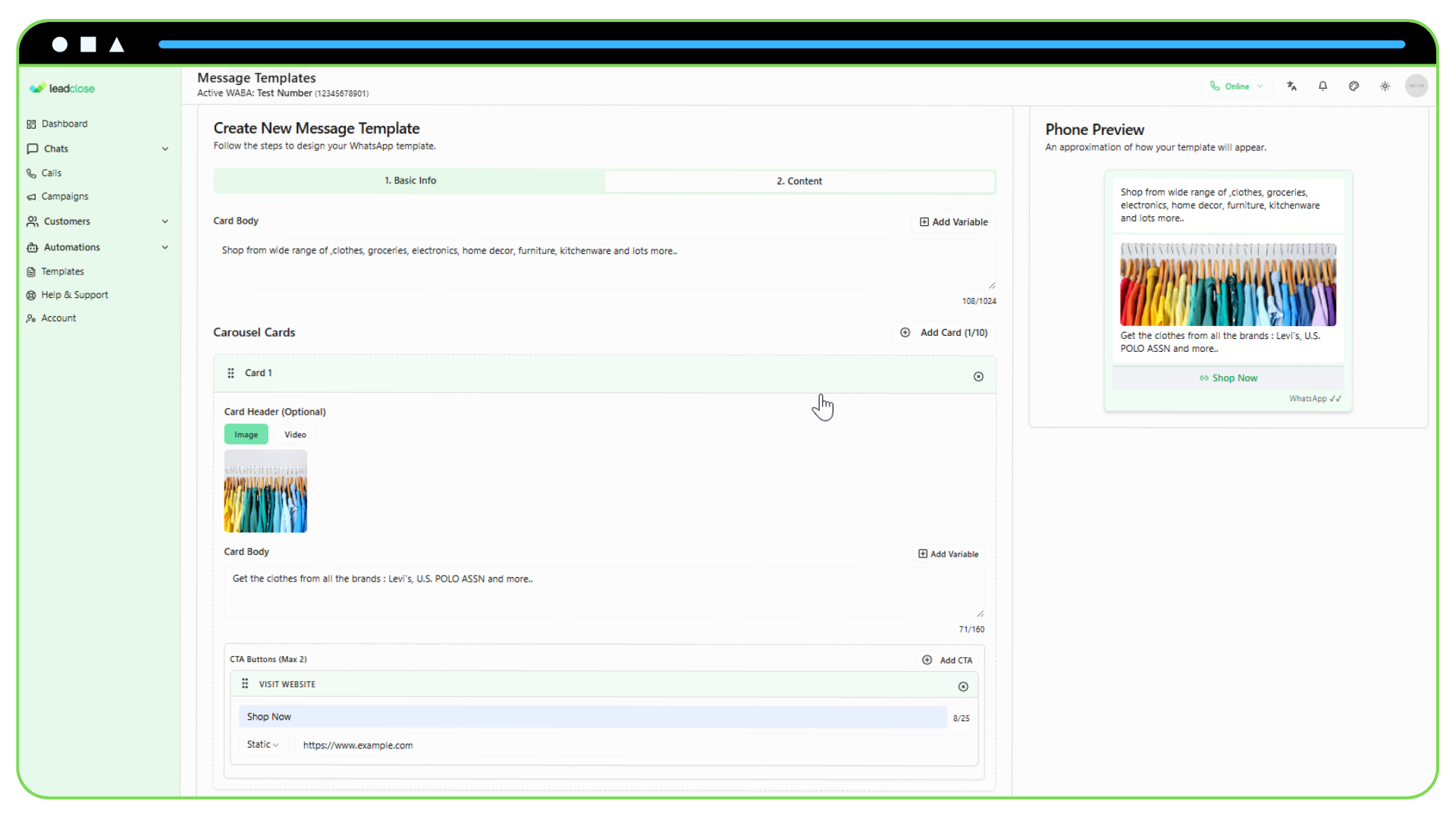
1. Message Body (Above Cards) This text is required and will appear above the scrollable cards. Use this to introduce the carousel. You can add variables here just like in a standard template.
2. Configure the Cards
Add a Card: Click the "Add Card" button. You can add up to 10 cards.
Card Header: Each card must have either an Image or a Video header. Click "Choose Media" to select an asset from your library or upload a new one. The media must be approved by Meta along with the template.
Card Body: Write the text for this specific card. You can use variables here as well. Remember to provide sample values for any variables you use.
Card Buttons: You can add up to 2 "Visit Website" buttons per card. Phone call or other button types are not supported on carousel cards.
Consistency is Key: Remember, while the content of each card can be different, the structure must be consistent. If your first card has one button, all subsequent cards must also have exactly one button.
Step 3: Submit for Review
Once you have configured all your cards, click "Submit for Review". The entire template, including all text and media, will be sent to Meta for approval.