
Cloning a campaign is a quick way to reuse the settings of a previous campaign for a new one. This is particularly useful for recurring promotions or monthly newsletters where the template and target audience are often the same.
How to Clone a Campaign
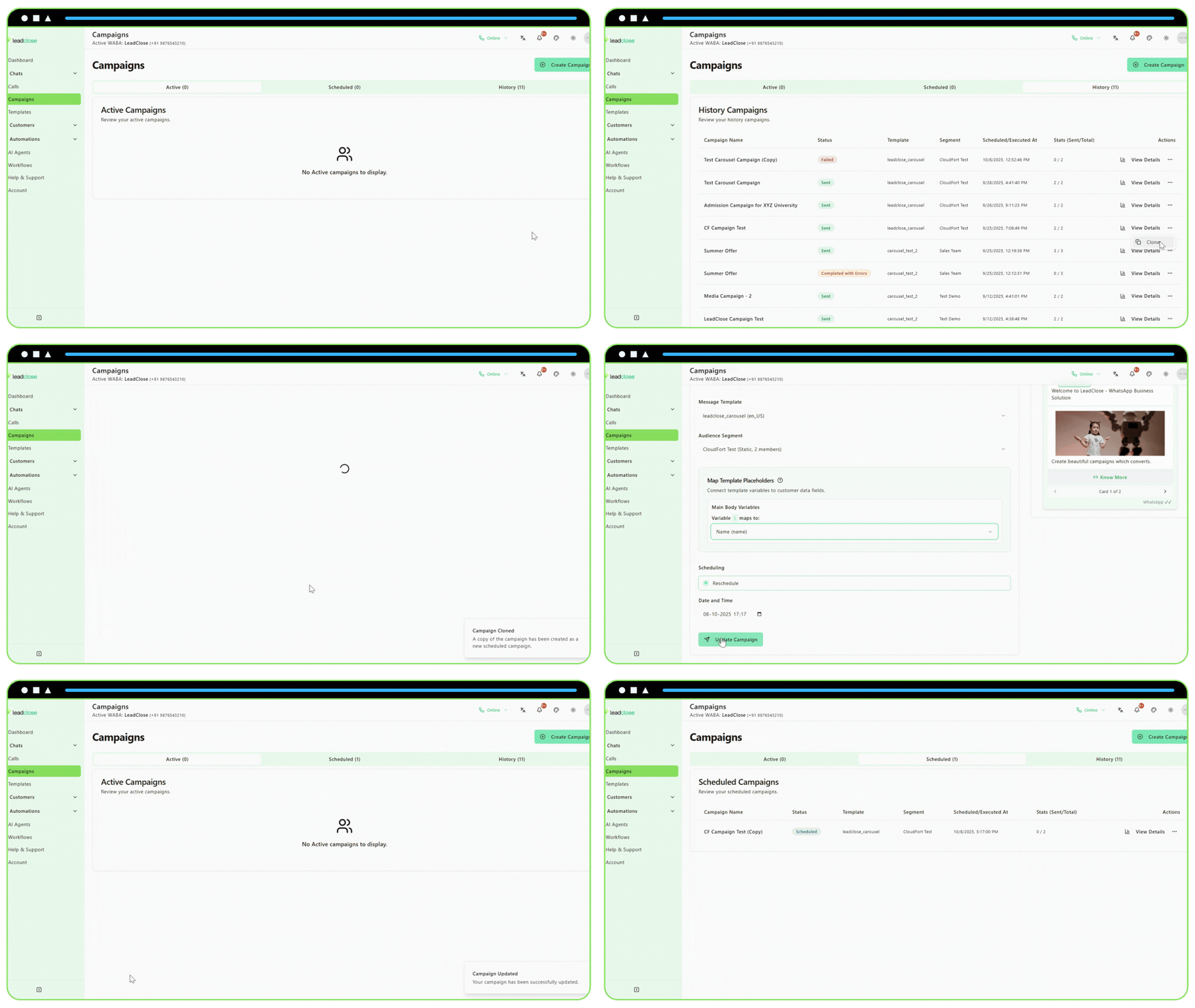
Navigate to Campaigns: Go to the
Campaignspage in the sidebar.Find the Campaign: Go to the History or Scheduled tab to find the campaign you want to copy.
Open the Actions Menu: Click the three-dots icon in the "Actions" column for that campaign.
Select "Clone": Click the "Clone" option from the dropdown menu.
What Happens Next?
A new campaign will be created as a copy of the one you selected.
You will be taken directly to the Edit Campaign page for this new, cloned campaign.
The following settings will be pre-filled from the original campaign:
- Campaign Name: It will be copied with "(Copy)" appended to the end. You should change this to something new.
- Message Template: The same template will be selected.
- Audience Segment: The same segment will be selected.
- Placeholder Mappings: All your previous variable mappings will be preserved.
- Media Header Mapping: If the original campaign used custom media, that will be carried over.
Editing and Scheduling the Cloned Campaign
On the Edit Campaign page, you can now make any necessary adjustments:
- Change the name to reflect the new campaign's purpose.
- Update the schedule. By default, the cloned campaign is scheduled for a few minutes in the future to prevent accidental sending. You can change this to "Run Immediately" or set a new future date and time.
- Modify mappings if needed.
- Click "Update Campaign" to save your new, cloned campaign.
Cloning saves you time by preventing you from having to re-configure all the mappings and settings from scratch for similar campaigns.