
The Chats page is your team's shared inbox for all one-on-one conversations with your customers on WhatsApp.
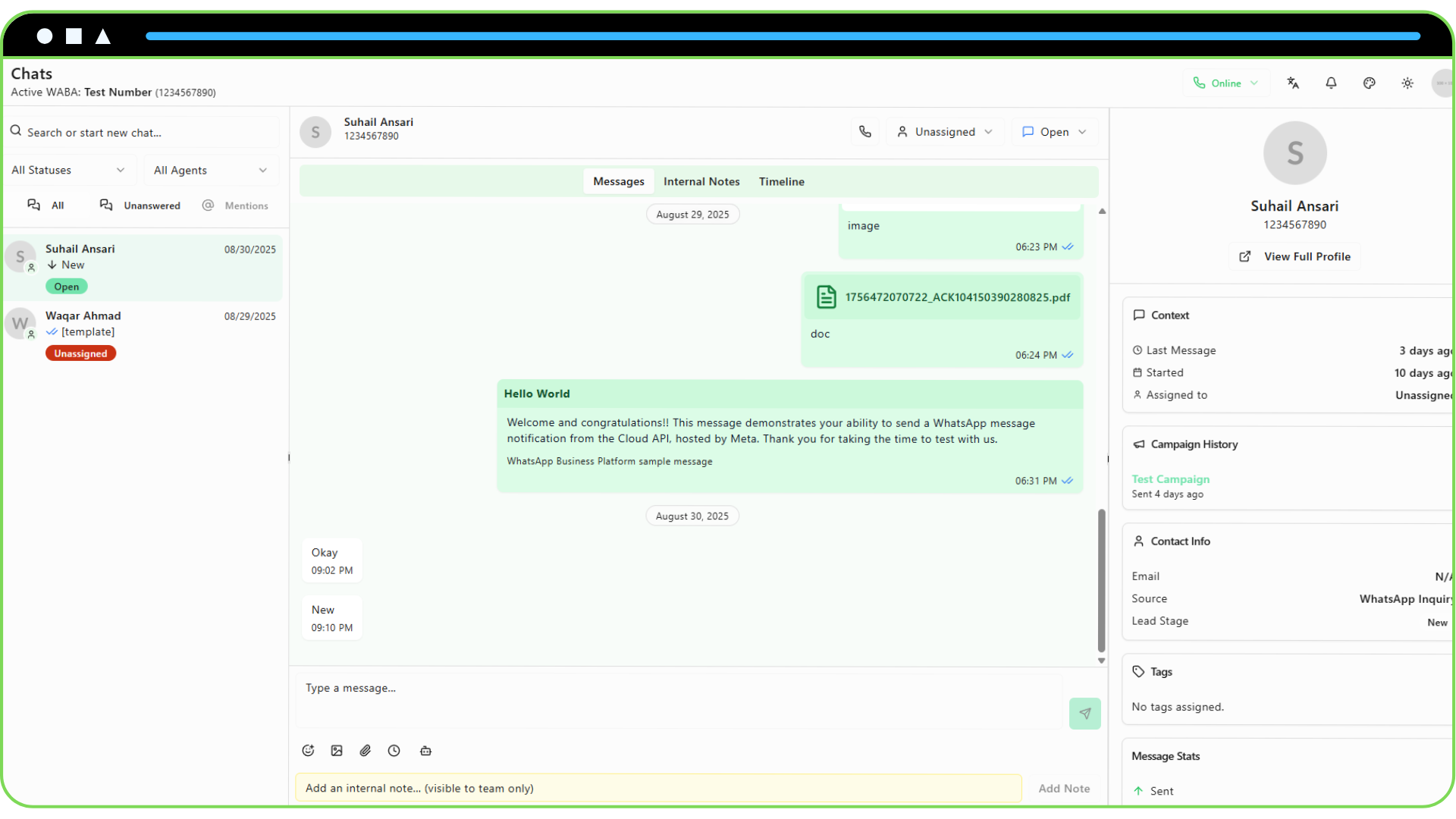
The interface is divided into three main panels:
1. Conversation List (Left Panel) This panel displays all your customer conversations, ordered by the most recent activity.
- Search: Quickly find a conversation by searching for a customer's name or phone number.
- Filters: You can filter the conversation list by Status (e.g., show only "Open" chats) or by Assignee (e.g., show only chats assigned to a specific agent).
- Conversation Item: Each item shows the customer's name, a snippet of the last message, and the time it was received. It also shows a small avatar of the agent it is assigned to.
2. Chat View (Center Panel) This is where the active conversation takes place.
- Header: Displays the customer's name and phone number. It also contains controls for assigning the chat and changing its status.
- Message History: The main area shows the back-and-forth messages between you and the customer, including text, media, and templates.
- Message Input: At the bottom, you'll find the composer to type your reply, attach files, send emojis, use canned responses, or send message templates.
- Tabs: You can switch between viewing Messages, internal Notes for team collaboration, and the customer's Timeline of key events.
3. Contact Details Sidebar (Right Panel) This panel provides rich context about the customer you are chatting with.
- Contact Info: Shows key details like email, source, and lead stage.
- Tags: Displays all tags associated with the customer.
- Message Stats: A quick look at the total messages sent, read, and received for this contact.
- Notes / Disposition: Shows any long-form notes saved on the customer's profile.
- View Full Profile: A link to navigate to the customer's complete profile on the Customers page.