
Canned Responses are pre-saved messages that help your team reply to common questions faster and more consistently. They can be simple text, include media, or even be based on an approved message template.
Creating a Canned Response
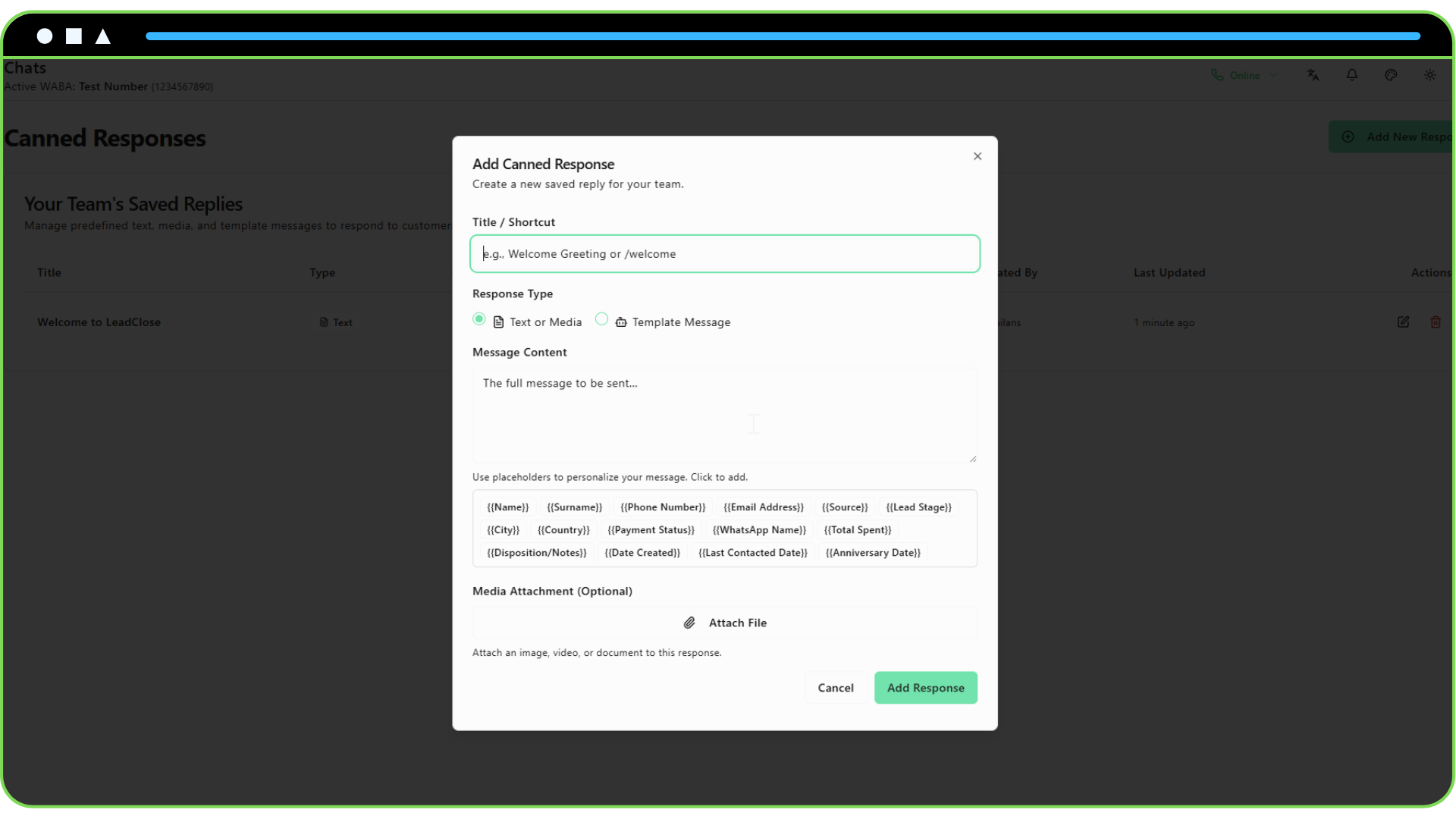
- Navigate to Canned Responses: In the sidebar, go to
Chats > Canned Responses. - Click "Add New Response": This opens the creation dialog.
- Give it a Title/Shortcut: This is what your team will use to find the response. For example, "Welcome Greeting" or a shortcut like "/welcome".
- Choose the Type:
- Text or Media: For a standard message. You can write your text, add customer placeholders (like
{{name}}), and optionally attach an image, video, or document. - Template Message: To use a pre-approved WhatsApp message template. You will select the template and can pre-fill any variables with customer data fields.
- Text or Media: For a standard message. You can write your text, add customer placeholders (like
- Save the Response.
Using a Canned Response in a Chat
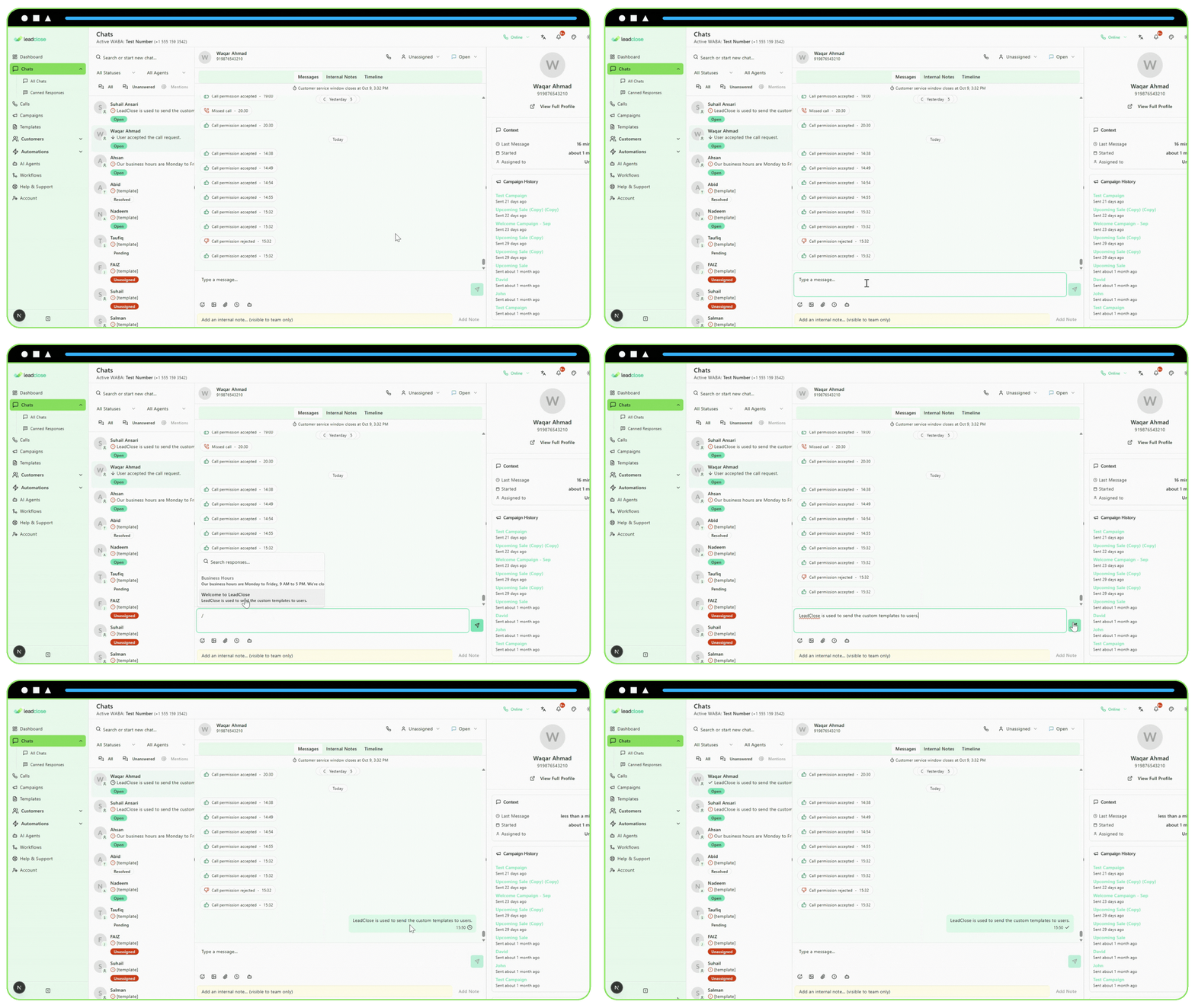
There are two ways to use a canned response in a conversation:
1. Using the Shortcut:
In the message input box, type
/followed by the title or shortcut of your response (e.g.,/welcome).A popover will appear showing matching responses.
Click the one you want to insert.
2. Using the Menu:
- Click the Canned Response icon (a speech bubble with a quote) in the message input area.
- This will open a popover where you can search and select from all available responses.