
Effectively managing conversation status and assignments is key to a productive team inbox. It ensures every customer is being helped and nothing falls through the cracks.
Chat Statuses
Every conversation has a status, which you can see and change at the top of the chat view.
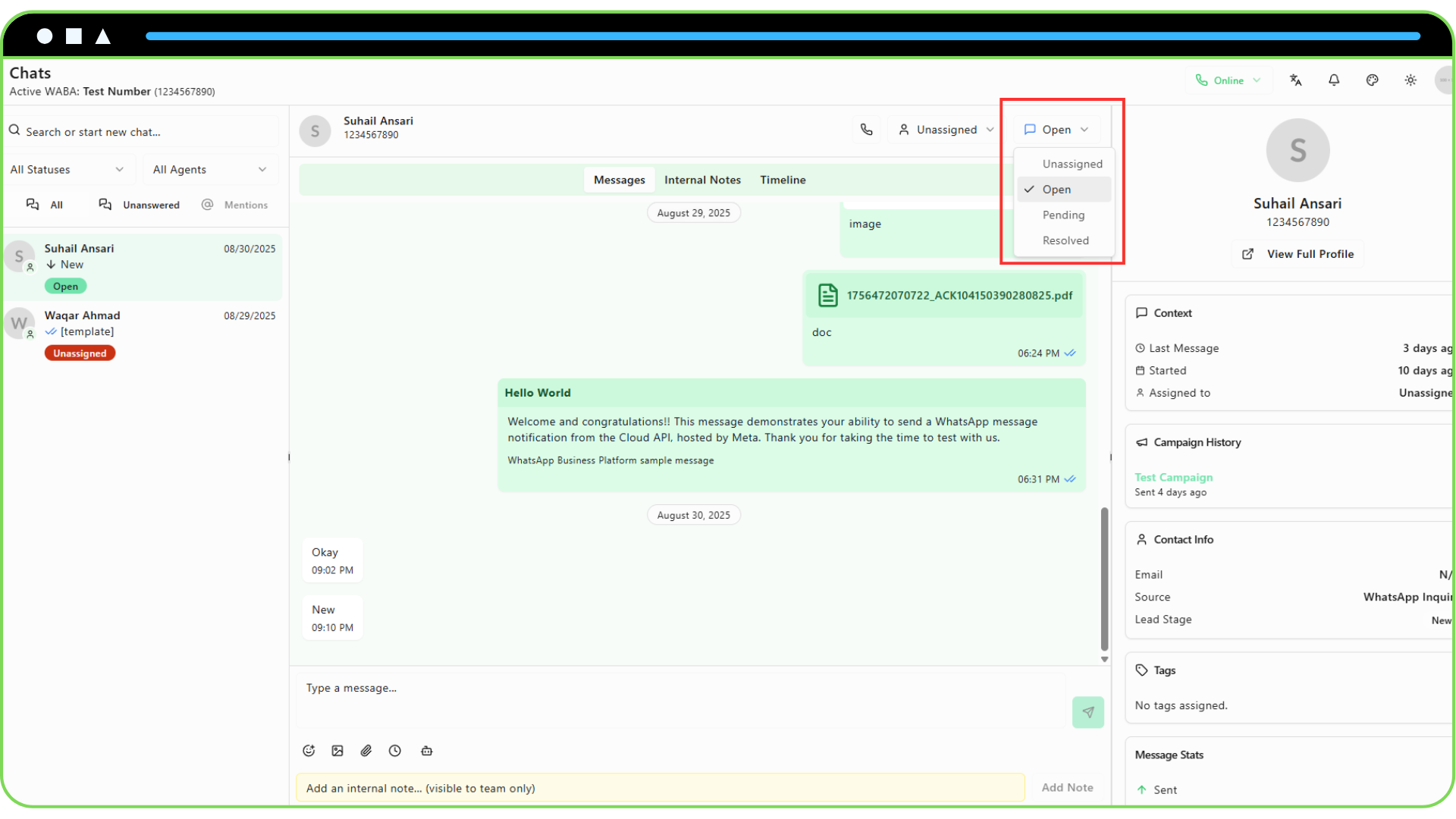
- Unassigned: A new conversation that has not yet been picked up by an agent.
- Open: The conversation is active and currently being handled by an assigned agent. When a new message comes in from a customer in a "Resolved" chat, it will automatically be moved back to "Open".
- Pending: The agent is waiting for a response from the customer or another team member and has temporarily set this chat aside.
- Resolved: The conversation is complete and has been closed.
Assigning Conversations
You can assign any conversation to a specific team member.
Open a conversation from the list on the left.
Click the Assignee dropdown in the header of the chat view.
Select a team member from the list. The conversation is now assigned to them and will appear in their filtered "My Chats" view.
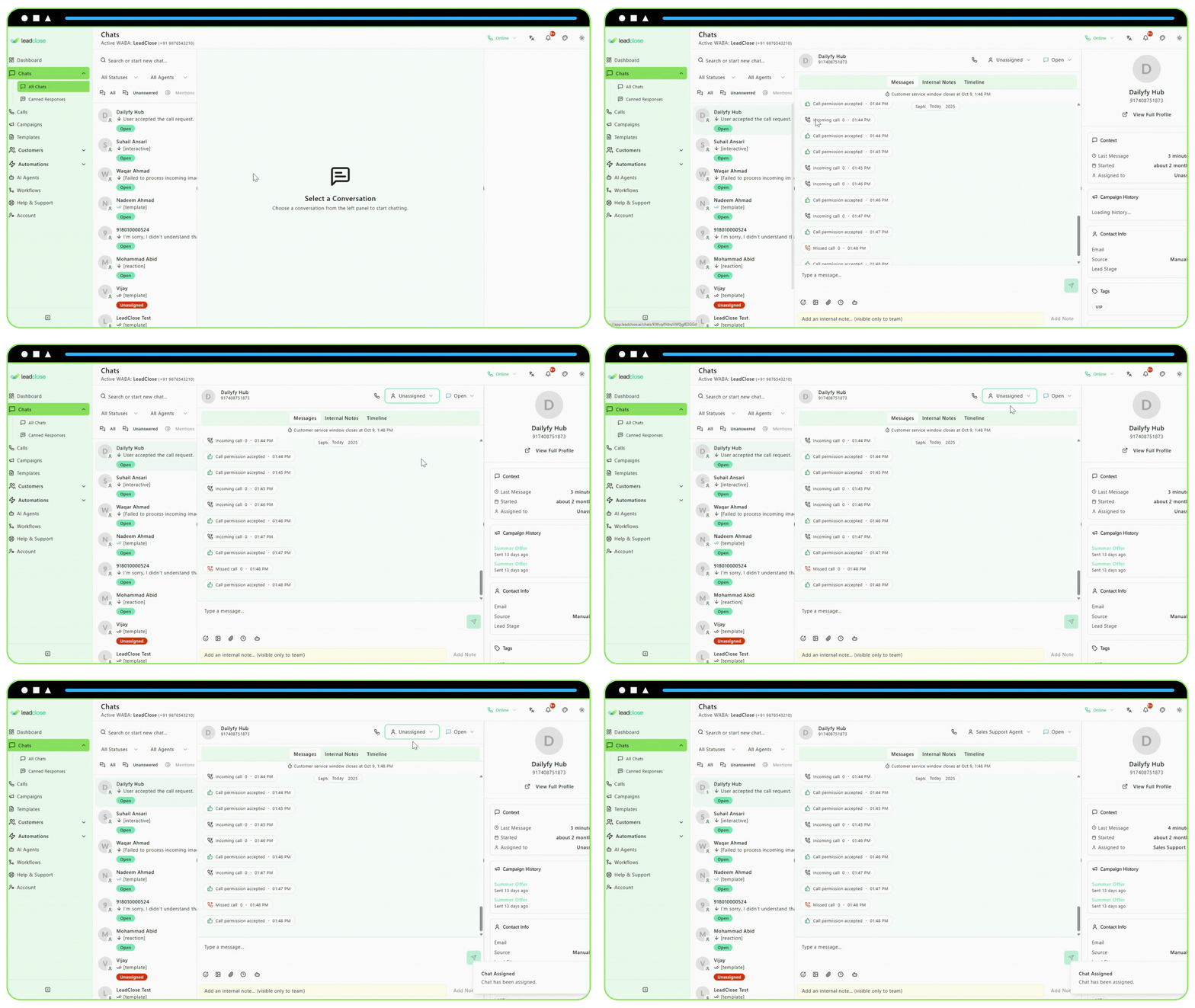
- Unassigning: To unassign a chat and return it to the general queue, simply select "Unassigned" from the dropdown.
- Automatic Assignment: When a user replies to an unassigned chat for the first time, it will automatically be assigned to them.