
The LeadClose chat composer allows you to send various types of messages to engage with your customers effectively. All these options are available when you are within the 24-hour customer service window.
1. Text Messages
This is the most basic form of communication.
- How to send: Simply type your message in the main input box at the bottom and press Enter or click the Send button.
- Features: You can include links (which will be clickable), emojis, and use standard formatting like bold (
*text*) and italics (_text_).
2. Media Messages (Images, Videos, Documents)
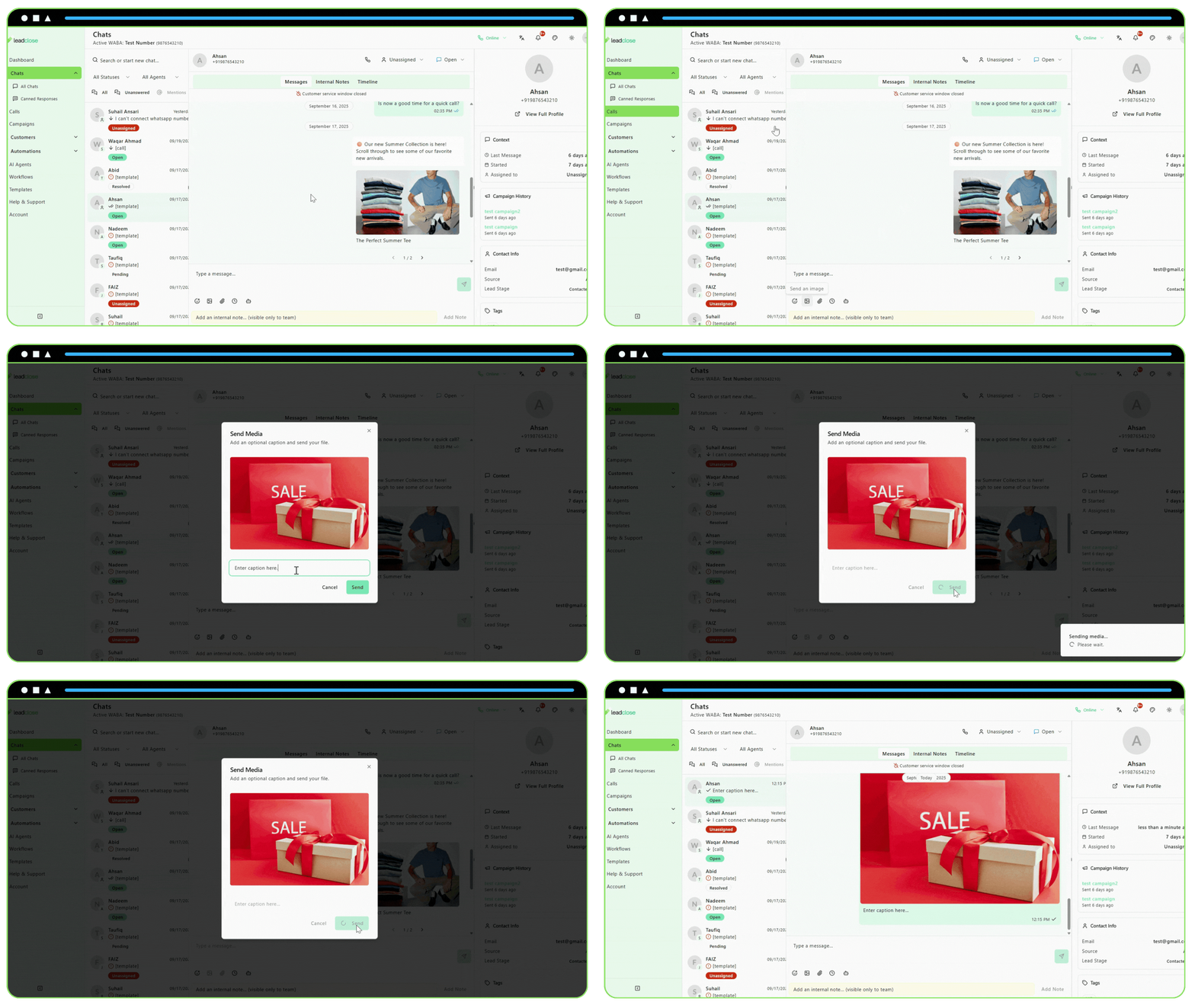
Sharing media can be much more effective than text alone.
Click the Plus (+) icon in the message input area.
Choose the media type:
- Image/Video: This will open your computer's file explorer. Select the image or video file you want to send.
- Document: Select this to send files like PDFs, Word documents, etc.
Add a Caption (Optional): A preview modal will appear. You can add an optional caption to your media here.
Click Send.
3. Template Messages
If the 24-hour window has closed, or if you need to send a complex, pre-approved message, you can use a template.
- Click the Bot icon in the message input area.
- Select a Template: A dialog will open where you can search for and select one of your approved message templates.
- Fill in Variables: If the template has variables (e.g.,
{{1}}), you will be prompted to fill in the values for this specific customer. - Send Message.
4. Canned Responses
For quick, common replies, use Canned Responses.
- Type
/followed by your shortcut (e.g.,/welcome). - A list of matching responses will appear.
- Click the response you want to use.
- If it's a text response, it will be inserted into your input box.
- If it's a template response, it will be sent immediately.
- If it has media, the media preview modal will open.