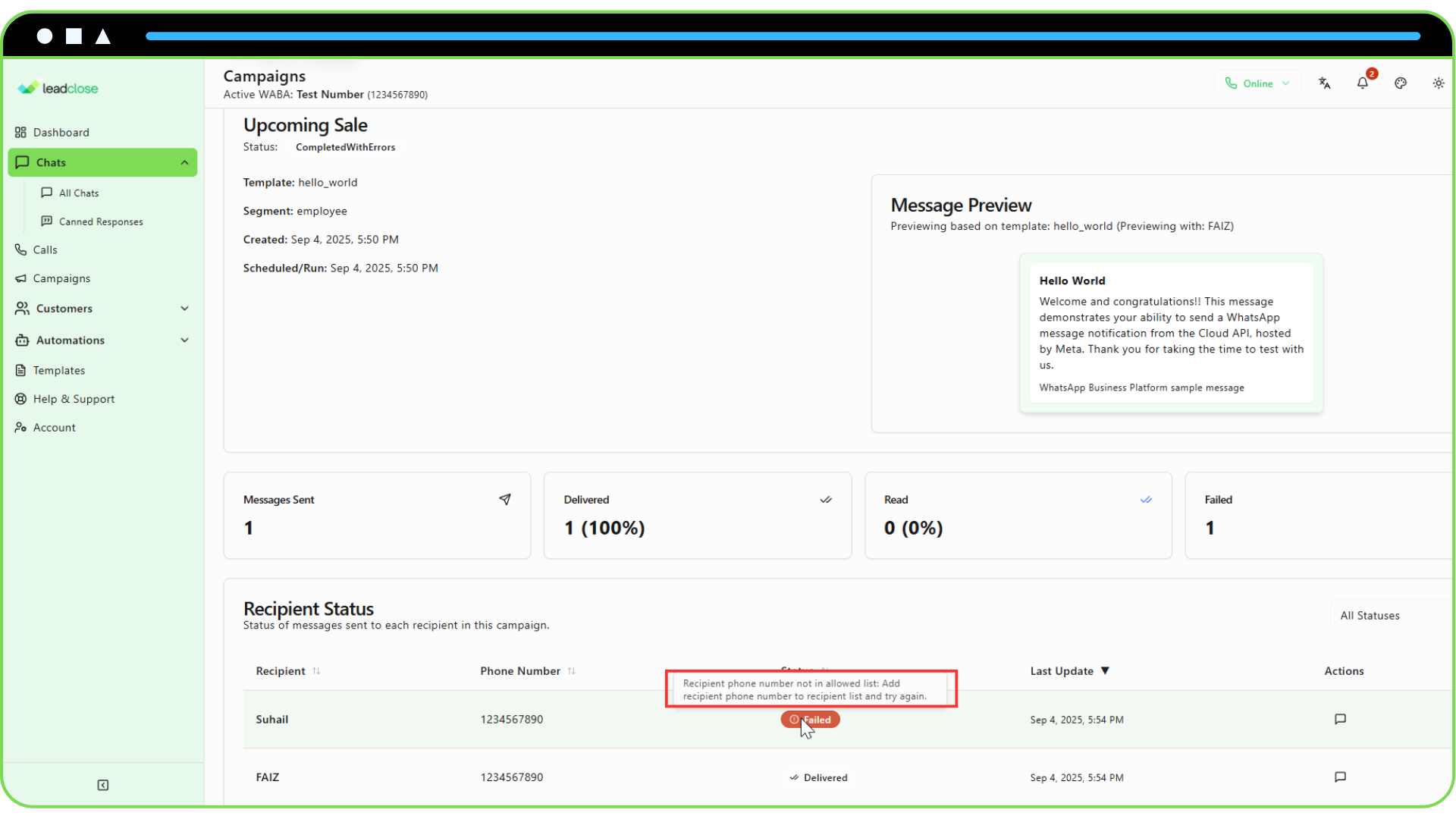
When you view the details of a campaign, you might see that some messages have a "Failed" status. This means the message could not be sent from your WhatsApp Business Account to the customer.
Here are the most common causes and how to troubleshoot them.
Common Reasons for Message Failure
Customer Has Blocked Your Number
- This is the most common reason for a message to a previously valid number to fail. If a user blocks your business, Meta will not allow any further messages to be delivered to them.
- Solution: There is no direct solution. Respect the user's choice. Ensure your opt-in and messaging practices are high-quality to prevent users from blocking you.
Invalid Phone Number
- The phone number is not a valid WhatsApp account. It may be a landline, have a typo, or the user may have deleted their WhatsApp account.
- Solution: Verify the phone number with the customer through another channel if possible. In the Customer's profile in LeadClose, you can edit the phone number to correct any typos.
Customer Has Not Opted-In (Policy Violation)
- You are sending a marketing template to a user who has not explicitly agreed to receive marketing messages from you on WhatsApp. Meta's systems can sometimes detect this and will block the message to prevent spam.
- Solution: Only send campaigns to segments of customers who have clearly opted-in. Review the "Guide to Collecting WhatsApp Opt-ins" for best practices.
Recipient is in a Restricted Country
- Due to local laws and regulations, you may not be able to send messages to users in certain countries.
- Solution: Ensure your marketing efforts comply with the laws of the regions you are targeting.
Template and Variable Mismatch
- The number of variables you provided in your campaign does not match the number of placeholders in the approved template. For example, the template expects
{{1}}and{{2}}, but you only provided a value for one of them. - Solution: This is an error that should be caught before sending. The campaign creation preview in LeadClose helps prevent this. If it does happen, it indicates a potential bug, and you should contact support.
- The number of variables you provided in your campaign does not match the number of placeholders in the approved template. For example, the template expects
Where to Find Error Details
Go to the Campaign Details page for the specific campaign.
In the Recipient Status table, find a message with the "Failed" status.
Hover over the status badge. A tooltip will often display the specific error message returned by the Meta API, which can provide more detailed insight into the cause of the failure.