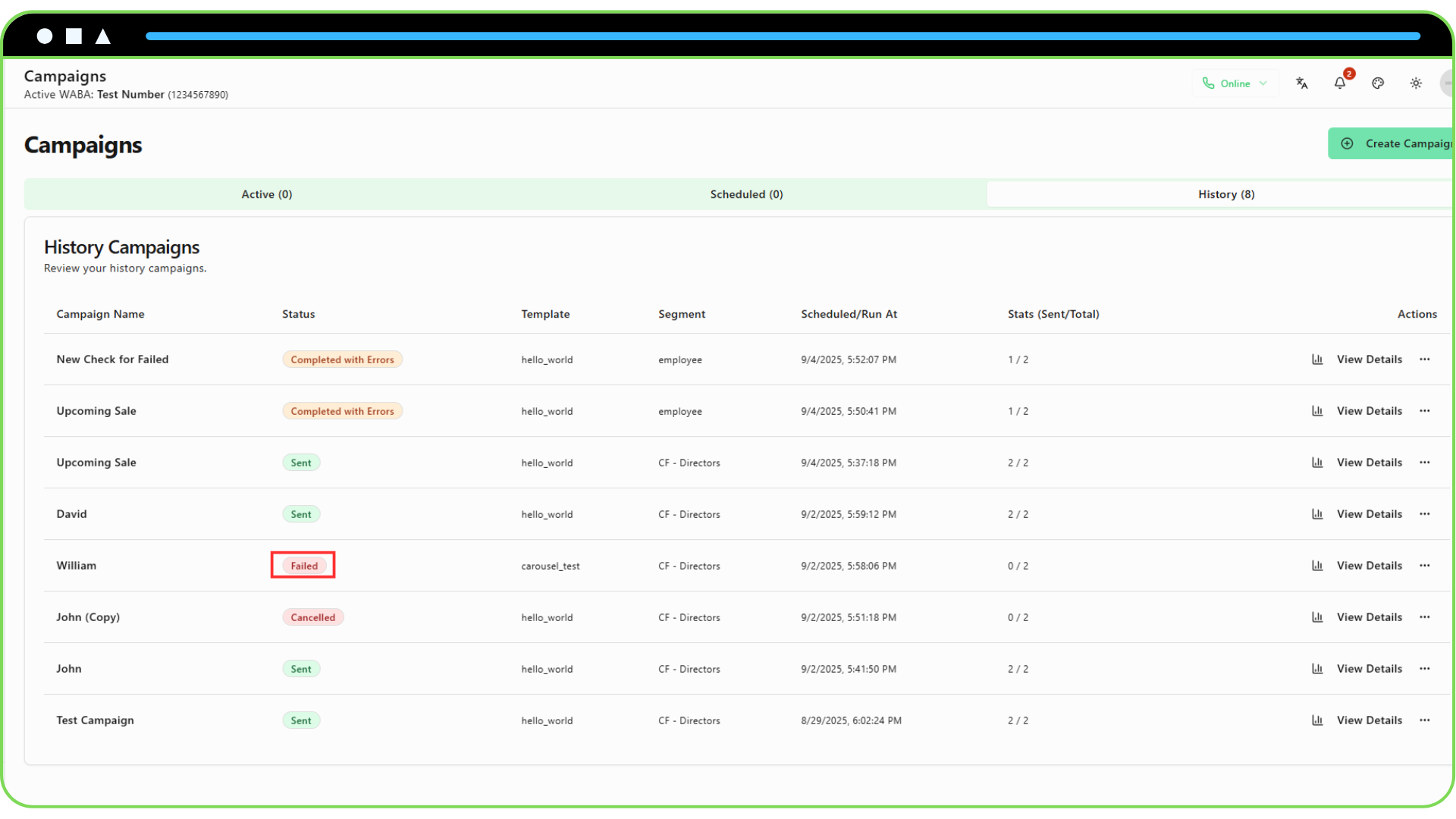
When a campaign runs, its status provides important information about its progress and outcome. You can see this status on the main Campaigns page and on the Campaign Details page.
Here's what each status means and what to do if you encounter an error.
Understanding Campaign Statuses
- Draft: The campaign has been saved but not yet scheduled or run.
- Scheduled: The campaign is set to run at a future date and time. You can still edit or cancel it.
- Queued: You've clicked "Run Now," and the campaign is in the queue waiting to be processed by the system.
- Processing: The system has picked up your campaign and is actively sending messages to the customers in your segment. This can take time for large segments.
- Sent: The campaign has finished processing, and all messages were successfully sent to the WhatsApp servers without any critical errors.
- Completed with Errors: The campaign finished, but some messages failed to send. You can see the details of which recipients failed on the Campaign Details page.
- Failed: A critical error occurred that prevented the campaign from starting or completing. This could be due to an issue with your WABA connection, an invalid template, or a system problem.
- Cancelled: You manually cancelled a "Scheduled" campaign before it started.
Common Errors and Solutions
Status: Failed
Rejection Reason: "WABA connection not found" or "Access token not found."
- Solution: Go to
Account > Profile. Your connection to Facebook may have expired. Reconnect your account and try cloning the campaign to run it again.
- Solution: Go to
Rejection Reason: "Template not found" or "Template is not approved."
- Solution: The template you selected may have been deleted or rejected by Meta after you scheduled the campaign. Go to the
Templatespage to verify its status. You will need to clone the campaign and select a valid, approved template.
- Solution: The template you selected may have been deleted or rejected by Meta after you scheduled the campaign. Go to the
Rejection Reason: "Segment not found."
- Solution: The segment you targeted may have been deleted after the campaign was scheduled. You will need to clone the campaign and select a valid segment.
Status: Completed with Errors This status is not a critical failure, but it means some of your customers did not receive the message.
- How to Investigate:
Go to the Campaign Details page for the campaign.
In the Recipient Status table, use the filter to select "Failed".
This will show you exactly which customers could not be reached.
Hover over the "Failed" badge to see the specific error reason for each message (e.g., "Recipient is not a valid WhatsApp user," "Recipient has blocked this business").