
If you are not receiving incoming call notifications (the pop-up toast and ringing sound), it's usually due to one of a few common reasons related to your status, permissions, or device settings.
Follow these troubleshooting steps to resolve the issue.
1. Check Your Agent Status in LeadClose
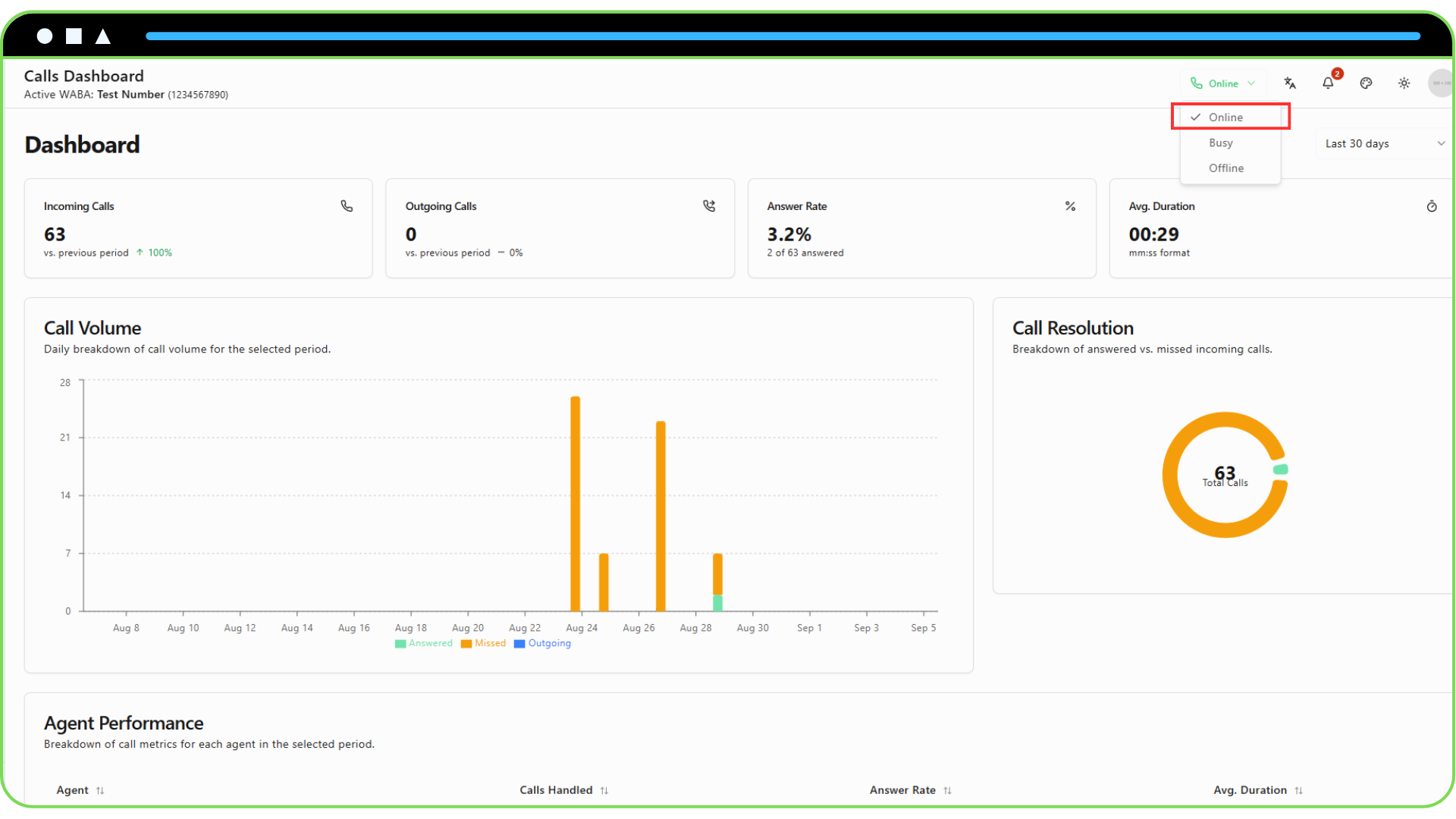
This is the most common reason. To receive calls, your status must be set to "Online".
Look at the top right of the LeadClose header.
If your status shows "Busy" or "Offline," click on it and change it to "Online."
If you are "In Call," you will not receive new call notifications until your current call ends.
2. Check Browser Microphone Permissions
Your browser needs permission to access your microphone to handle calls.
- Click the padlock icon in your browser's address bar.
- Find the "Microphone" permission.
- Ensure it is set to "Allow" for the LeadClose website.
- If you make a change, you may need to refresh the page.
3. Check System Notification Permissions
Your computer's operating system might be blocking notifications from your web browser.
- Windows: Go to
Settings > System > Notificationsand ensure notifications are on and that your browser is allowed to show them. Also check "Focus assist" (Do Not Disturb) is turned off. - macOS: Go to
System Settings > Notifications. Find your browser in the list and ensure "Allow Notifications" is turned on. Also, check that you do not have a "Focus" mode enabled.
4. Check Browser Notification Permissions
In addition to microphone permissions, the site needs permission to show notifications.
- Click the padlock icon in the address bar.
- Find the "Notifications" permission.
- Ensure it is set to "Allow".
5. Are You Assigned to the Customer?
Depending on your team's internal workflow, call routing might be configured to prioritize the agent assigned to a customer. While the default is to ring all online agents, check with your administrator if a specific routing logic is in place. If an incoming call is from a customer assigned to another agent who is also online, they may receive the notification first.
If you have checked all these steps and are still not receiving call notifications, please contact our support team for further assistance.