
When importing customers from a CSV file, you may encounter errors if the data is not formatted correctly. The Review step of the import process is designed to catch these issues before the import begins.
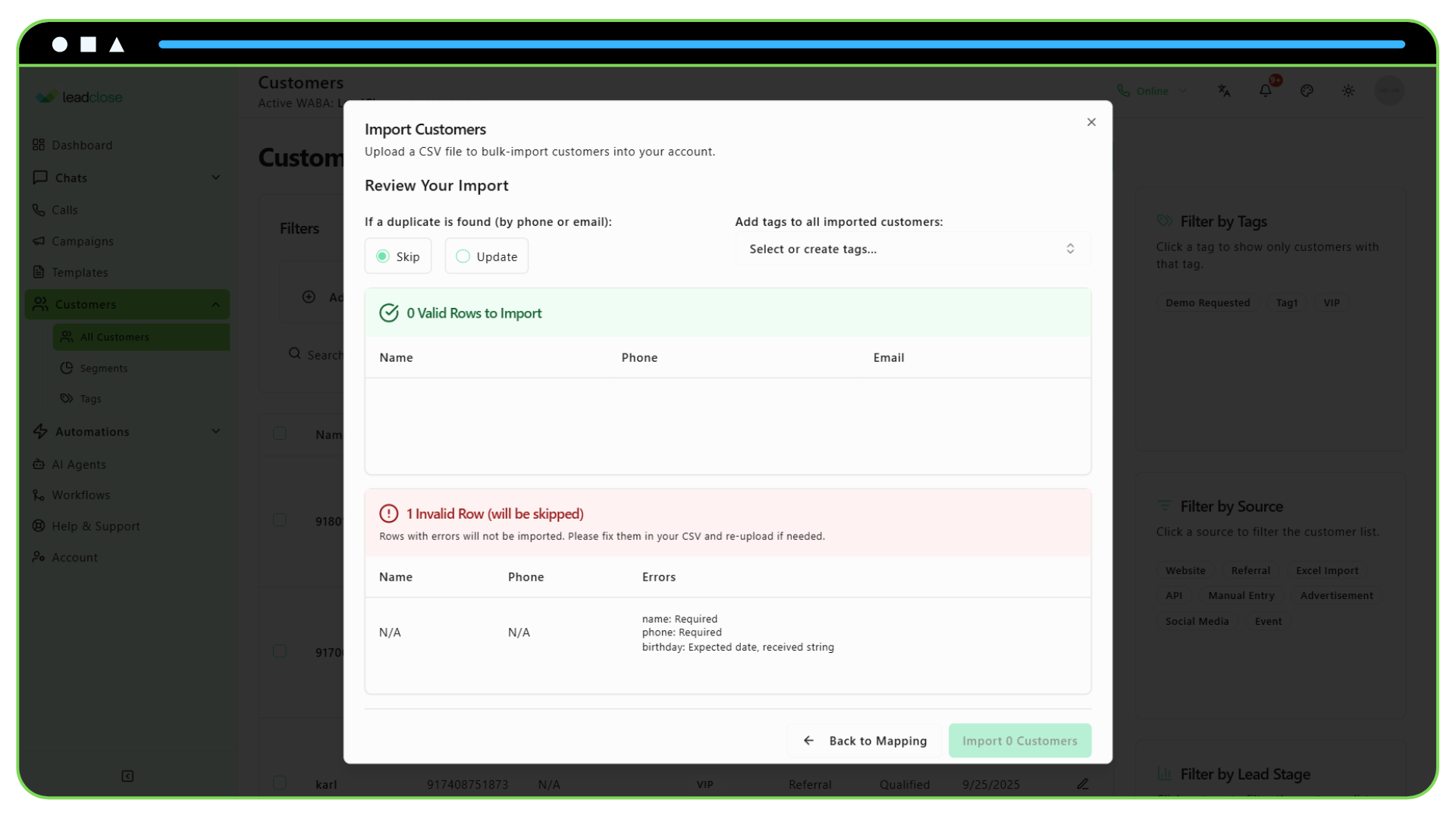
Here are the most common import errors and how to fix them in your CSV file.
Common Import Errors
1. Missing Required Fields
- Error Message:
name: Required,phone: Required - Cause: A row in your CSV is missing a value in the
nameorphonecolumn. These two fields are mandatory for every customer. - Solution: Open your CSV file. Find the row mentioned in the error preview and fill in the missing name or phone number.
2. Invalid Phone Number Format
- Error Message:
phone: Invalid phone number format. - Cause: The phone number is not in the correct international format.
- Rules for Phone Numbers:
- Must include the country code.
- Must NOT include any spaces, dashes, parentheses, or other special characters.
- A leading
+is optional.
- Bad Examples:
(555) 123-4567,5551234567,+1 (555) 123-4567 - Good Example:
+15551234567 - Solution: Edit the
phonecolumn in your spreadsheet to ensure all numbers follow the correct international format. Use your spreadsheet software's "Find and Replace" feature to quickly remove characters like(,),-, and spaces.
3. Invalid Email Format
- Error Message:
email: Invalid email address. - Cause: The value in the
emailcolumn is not a valid email address (e.g., it's missing the@symbol or a domain). - Solution: Correct the email address in your CSV file or leave the cell blank if you don't have a valid email for that customer.
Best Practices for a Smooth Import
- Use the Template: Always start by downloading the CSV template from the import modal. This ensures you have the correct headers.
- Check for Empty Rows: Make sure there are no empty rows in the middle of your data, as this can sometimes cause the parser to stop reading the file.
- Text Formatting: Ensure your spreadsheet software is saving the
phonecolumn as text, not as a number. Sometimes, software can remove the leading+if it interprets the column as a number. - Start Small: If you have a very large list, try importing a small sample of 5-10 rows first to ensure your formatting is correct before uploading the entire file.